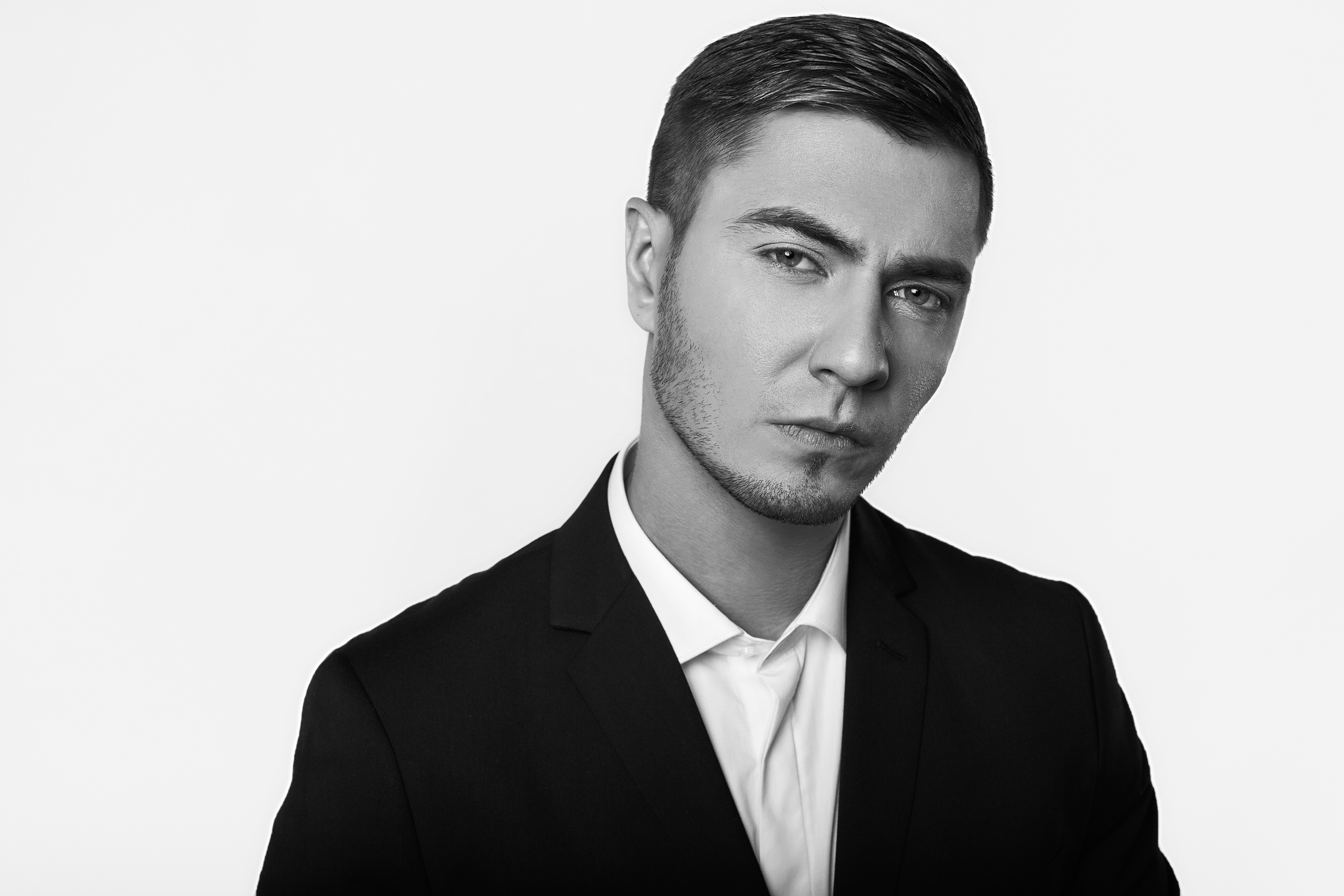
Master Color Correction for Flawless Portrait Retouching
Color correction is where the magic happens in portrait retouching. I’ve found that even the most beautifully lit portrait can feel off if the color isn’t right. Whether you’re dealing with unflattering lighting conditions, mixed color temperatures, or just want to enhance skin tones, understanding color correction will transform your work.
Let me walk you through the techniques I rely on every day.
Why Color Correction Matters Before Retouching
Before we touch a single blemish or soften any skin, we need to establish a solid color foundation. I always start here because fixing colors first prevents us from chasing problems later. When skin tones are off, we instinctively try to fix them with healing tools—but that’s backward. The right color correction makes everything else easier.
Think of it as tuning an instrument before the performance. We’re setting the stage for all the retouching that follows.
Identifying Color Casts in Your Image
The first step is seeing what we’re working with. I always zoom to 100% and look at the whites of the eyes, teeth, and the highlight areas of the skin. These neutral areas reveal color casts immediately.
Open your image in Lightroom or Capture One and navigate to the white balance controls. Move your cursor over a truly neutral area—the whites of the eyes work perfectly. If the eyeballs have a yellow, blue, or green tint, that’s your color cast. This tells us everything we need to know about what’s happening in the entire image.
Quick White Balance Correction
Start with the Temperature and Tint sliders in your software’s basic panel. I typically adjust Temperature first—this handles the warm (yellow/orange) versus cool (blue) spectrum. Then I fine-tune with the Tint slider for any green or magenta shifts.
Here’s my workflow:
- Select the eyedropper tool in your white balance section
- Click on the whites of the eyes
- Let the software do the heavy lifting
- Fine-tune by eye if needed
Often, the automatic adjustment is 80% of the way there. From there, I make subtle tweaks. Usually, portraits benefit from being just slightly warmer than mathematically perfect—around 100-200K warmer gives us that inviting, flattering quality we’re after.
Targeted Skin Tone Adjustments
Once we’ve addressed the overall cast, I zoom in on the skin itself. Sometimes we need to add warmth specifically to the face while keeping other tones neutral. This is where selective color correction shines.
In Lightroom, I use the HSL panel to target specific color ranges. I’ll often increase the saturation of the yellow and orange ranges slightly—this enriches skin tones naturally. Then I might desaturate the reds slightly to prevent any ruddy appearance, unless that’s the look we’re going for.
With Capture One, the Color Editor gives us even more precision. We can adjust individual color zones independently, which is incredibly powerful for fine-tuning skin without affecting background colors.
The Luminosity Adjustment
Here’s something I emphasize with every client: brightness and color are separate conversations. After correcting the color itself, check the luminosity of your skin tones. Sometimes a portrait needs color correction and slight brightening of the mid-tones to feel fresh.
I use the Curves tool for this final refinement. A gentle lift in the midtones (the center of the curve) gives us that luminous quality without blowing out highlights. It’s subtle, but our viewers feel it immediately.
Trust Your Eyes, But Check Your Work
I always export a test version and view it on my phone and a second monitor. Colors shift depending on our viewing environment, and fresh eyes catch issues we’ve become blind to. If something feels off after spending 20 minutes on one image, step away and come back.
Color correction is the foundation of beautiful portrait retouching. Master these fundamentals, and everything else becomes easier.
Comments
Leave a Comment