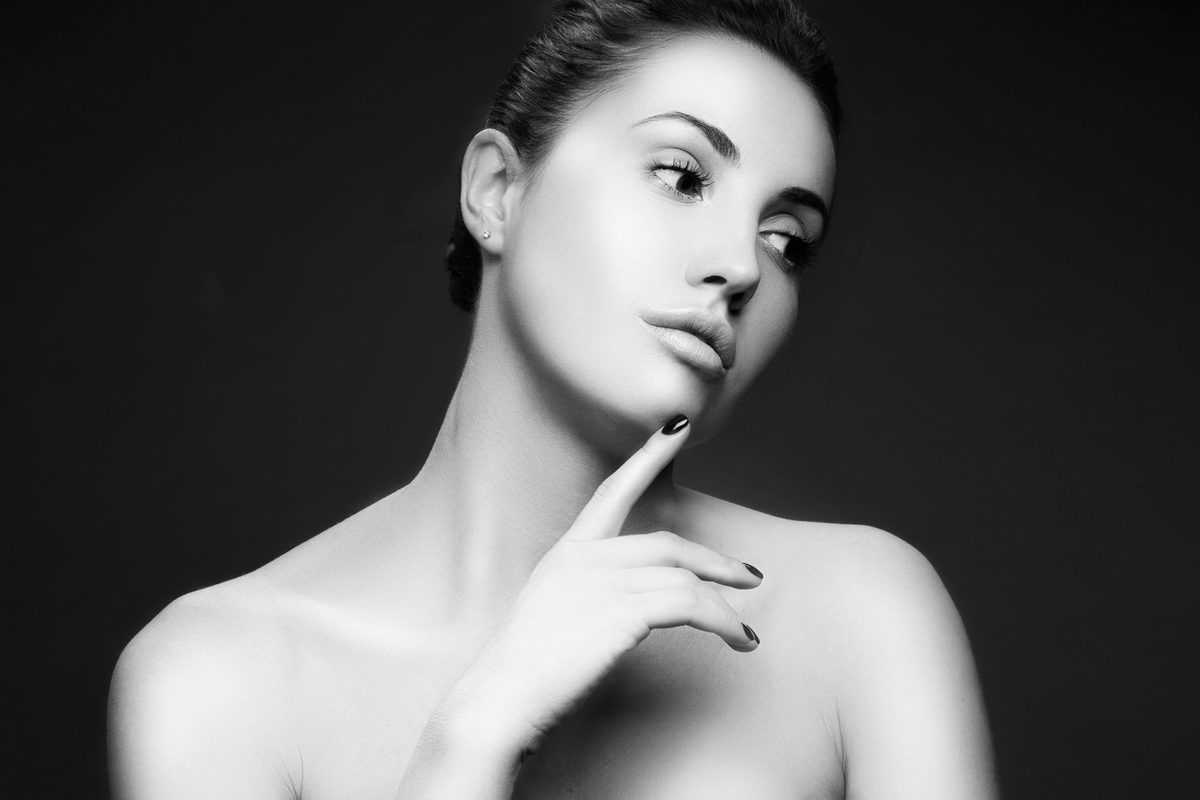
The Art of Natural Beauty Editing: Enhancing Without Overdoing
When I first started retouching portraits, I made the same mistake many beginners do: I over-edited. My subjects looked airbrushed and plastic—beautiful, sure, but not them anymore. Over the years, I’ve learned that the most powerful beauty edits are the ones people don’t notice. Today, I want to share what I’ve discovered about enhancing portraits while preserving that authentic, natural quality.
Start With a Solid Foundation
Before we touch a single slider, we need to get our settings right. I always shoot in RAW format because it gives us so much more information to work with in post-processing. If you’re working with JPEGs, you’re already working with compressed data, and that limits our flexibility.
When I import an image into Lightroom or Capture One, I spend time on the basic adjustments first. We’re talking exposure, white balance, and contrast. These foundational moves often do 60% of the heavy lifting. A properly exposed image with accurate skin tones needs far less aggressive retouching than one that’s underexposed or color-cast.
The Skin Retouching Process: Less Is More
Here’s my step-by-step approach that keeps skin looking human:
Step 1: Create a non-destructive workflow. I always work on a duplicate layer. This protects the original and lets me adjust the opacity of my edits later. A skin retouch at 70% opacity often looks more natural than at 100%.
Step 2: Address texture before tone. Using a healing brush or clone tool, I target specific blemishes and texture issues. I avoid blanket smoothing filters—they erase character. Instead, I work spot-by-spot, sampling skin from nearby clean areas. This maintains natural skin texture and pores.
Step 3: Even out skin tone selectively. Once texture is handled, I use a frequency separation technique or local adjustment brushes to address redness, discoloration, or uneven tones. In Lightroom, I’ll use the adjustment brush set to reduce saturation on red and orange tones specifically. This is gentler than desaturating the entire image.
Step 4: Add subtle luminosity. I often create a new layer and paint with a soft white brush at low opacity (10-15%) over areas where light naturally catches the face—cheekbones, bridge of nose, center of forehead. This creates dimension without obvious highlighting.
Eyes and Lips: Where Detail Matters
I dedicate real time to the eyes because they’re where people look first. I’ll gently enhance the catch light using a small white brush, and I might add a whisper of saturation to the iris. For the lips, I avoid heavy color shifts. Instead, I’ll slightly increase clarity and maybe add a touch of saturation if needed.
The key here is subtlety. A 5% increase in saturation can make lips look fresher without appearing painted-on.
The Opacity Check—Your Best Friend
Before I finalize any beauty edit, I drop the opacity of that layer to 70-80% and step back. If I notice the difference immediately and it looks different rather than better, that’s a sign I’ve overdone it. The edit should enhance the person’s natural beauty, not transform them into someone else.
Final Thoughts
Beauty editing is about respect—for your subject and for the craft. We’re not creating fantasy versions of people; we’re presenting them at their best. When someone sees your retouched portrait and says, “That’s gorgeous—is that really you?” rather than “Wow, that’s heavily edited,” you’ve nailed it.
Start practicing these techniques on images where you feel comfortable experimenting. Save multiple versions. Compare them side-by-side. You’ll quickly develop an eye for what looks natural in your own work, and that intuition becomes invaluable.
Comments
Leave a Comment