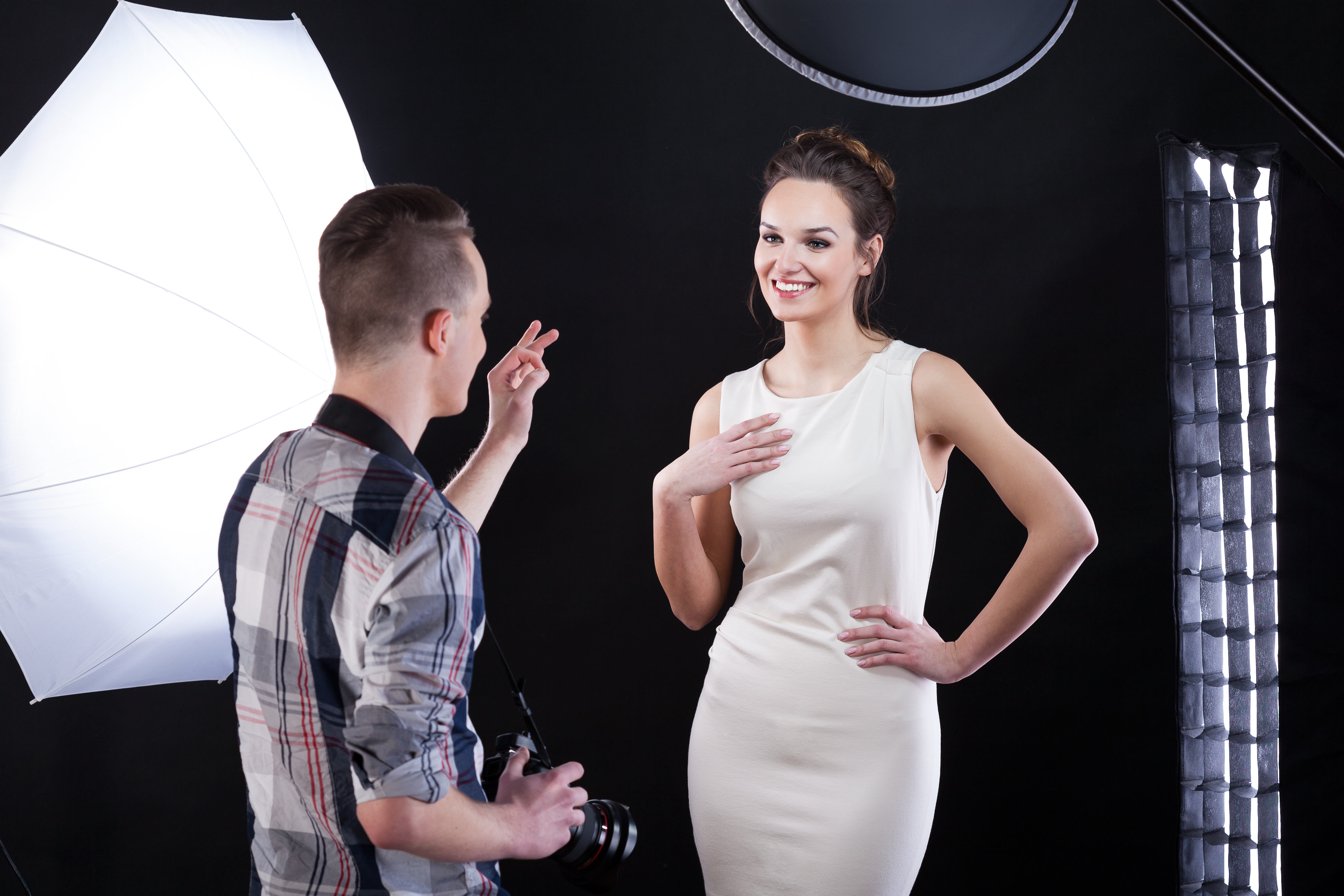
The Art of Professional Headshot Editing: My Essential Workflow
When I first started retouching headshots, I made every mistake in the book. Over-smoothed skin. Unnatural eye enhancement. Teeth that glowed like neon signs. After years of refining my approach, I’ve developed a workflow that delivers results my clients genuinely love—and I want to share it with you.
The key to great headshot editing isn’t about making someone look like a filtered version of themselves. It’s about revealing their best self while keeping them recognizable and authentic.
Start with a Solid Foundation
Before I touch any retouching tools, I always examine my image at 100% zoom. I look for the technical issues first: exposure inconsistencies, color casts, and focus areas. If the lighting is uneven across the face, I’ll use a subtle dodge and burn technique to even things out.
Here’s my approach: I create a new layer and set it to “Overlay” mode at about 15% opacity. Using a soft brush with 30% opacity, I dodge the shadows slightly and burn the highlights just enough to create dimensional balance. This step takes five minutes but makes an enormous difference.
Tackle Skin Texture Thoughtfully
This is where many of us go wrong. I never use heavy blur filters that erase all character from someone’s face. Instead, I use a three-step approach:
1. Healing Tool First: I address only obvious blemishes, active breakouts, or temporary marks—not every pore. I use the healing brush at 100% on a separate layer, working in small strokes that follow the skin’s natural texture.
2. Frequency Separation: For larger areas, I create a frequency separation layer set. I blur a duplicate layer at about 5-8 pixels (this becomes my color layer), then set the original to linear light mode. This lets me reduce texture and redness without losing all dimension.
3. Subtle Smoothing: I finish with a very light application of the Despeckle filter (in Photoshop) set to radius 2-3 pixels, or I’ll use a professional plugin like Portraiture set to its lowest strength. The goal is polish, not plastic.
Eyes and Brows Deserve Special Attention
Eyes are where we connect. I spend meaningful time here because well-edited eyes completely transform a headshot.
For eyes, I create a new layer and use the dodge tool at low opacity (15-20%) to subtly brighten the white of the eye and add a catch light if it’s missing. I never make eyes look unnatural—just awake. I’ll also selectively desaturate any redness in the whites.
For eyebrows, I strengthen them just slightly using a small brush on a new layer. I match the person’s natural brow color and follow their existing shape. A stronger brow frames the face beautifully and adds confidence to the expression.
Refined Color and Tone Work
Color correction can make or break a headshot. I aim for skin tones that look warm and healthy, never orange or too pink.
I create a Curves adjustment layer and gently lift the midtones slightly. Then I use selective color adjustment to reduce any excess blue (which creates unflattering shadows) and add warmth to the skin tones. The adjustment should be so subtle that it feels invisible—your client should just look like their best self.
The Final Check: Distance View
Before I call a headshot done, I zoom out and view it at actual size on my screen. I step back from my desk entirely. Does it look polished? Does it still look like the person? Could it be used on LinkedIn, IMDb, or a company website without looking over-edited?
If I catch myself saying “wow, that’s edited,” I’ve gone too far.
Headshot retouching is an iterative skill. Each image teaches us something new about balance, restraint, and what truly serves the client. I encourage you to practice this workflow on a variety of skin tones and face shapes—that’s where the real mastery develops.
Comments (12)
Wow, I had no idea you could do this. Mind blown.
Just used this on a wedding shoot edit. Client was thrilled.
Quality content like this is rare. Keep it up.
Just used this on a wedding shoot edit. Client was thrilled.
This is the kind of content that keeps me coming back.
Well explained. I think my audience would really benefit from this — mind if I link to it?
Never thought of approaching it this way. Really creative.
Been doing this wrong for years apparently. Thanks for the wake-up call.
This saved me so much time on my last edit. Wish I'd found this sooner.
This saved me so much time on my last edit. Wish I'd found this sooner.
Clear and practical. No fluff. Appreciate that.
This saved me so much time on my last edit. Wish I'd found this sooner.
Leave a Comment