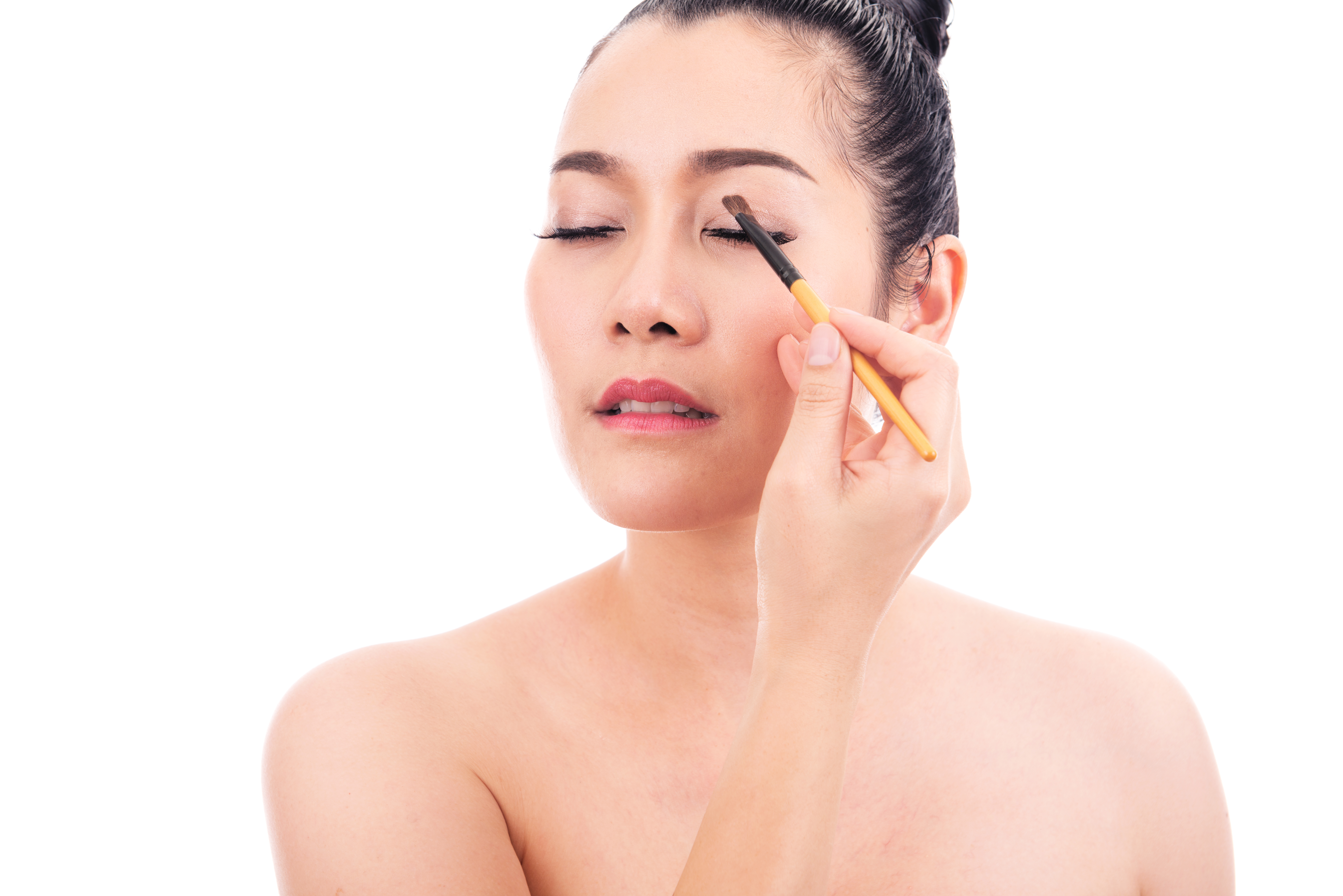
The Art of Subtle Beauty Editing: Enhancing Without Over-Processing
I’ve spent the last decade perfecting the delicate balance between enhancement and authenticity. When I started portrait retouching, I made the same mistake many editors do: I over-processed everything. Skin looked plastic, pores disappeared entirely, and the final images looked nothing like the actual person. That’s when I realized that true beauty editing isn’t about erasing flaws—it’s about revealing the best version of someone’s natural self.
Today, I want to share what I’ve learned about creating beautiful portraits that still look like real humans. Whether you’re editing for clients, social media, or personal projects, these techniques will help you develop a refined, professional approach.
Start With Your Foundation: Smart Skin Prep
Before you touch any blemish or wrinkle, I always begin with foundational work. The key is separating your edits into layers so you maintain control and flexibility.
Create a duplicate layer of your original image and set it to 20% opacity. This becomes your reference layer—keep it visible while you work. Next, I use a combination of Frequency Separation (if working in Photoshop) or a similar technique in Lightroom. This separates texture from color, allowing us to work on imperfections without destroying natural skin detail.
For those new to Frequency Separation: apply a High Pass filter to one layer and set it to Overlay blend mode. This isolates texture while you address color variations on a separate layer. Start with a radius between 3-8 pixels—higher values blur detail, which we want to avoid.
The Targeted Blemish Approach
Here’s where precision matters. Instead of using the Healing Brush broadly across the face, I zoom in to 100% and work on individual blemishes one at a time. Use the Clone Stamp tool or Healing Brush with a brush size just slightly larger than the blemish itself—typically 10-20 pixels.
The technique I recommend: make 2-3 small strokes rather than one large one. This gives you more control and creates a more natural blend. After each pass, check your work at 50% zoom to ensure it doesn’t look artificially smoothed.
For under-eye circles and shadows, I avoid aggressive healing. Instead, I use a very soft brush (10-15% opacity) and sample from lighter areas nearby. Build up the correction gradually—it’s easier to add than subtract.
Subtle Enhancement: Eyes and Lips
Eyes deserve special attention because they convey emotion and personality. I never artificially enlarge them or increase saturation drastically. Instead, I:
- Slightly darken the iris using a small circular selection with feathering (20 pixels)
- Add a touch of saturation only to the iris (5-10 points in most software)
- Carefully sharpen the catchlight reflection to make eyes sparkle
- Subtly warm the whites if they appear yellowed (reduce blue channel slightly)
For lips, resist the urge to saturate heavily. A natural approach: enhance the existing lip color by 10-20%, ensure the edges are clean but soft, and add depth only in the natural shadow areas. This maintains the person’s authentic lip tone while making them look polished.
The Final Check: Is It Still Real?
Before finalizing, I step back and ask myself: “Does this person recognize themselves?” Flip between your edited and original image at 50% opacity. The changes should be noticeable but not shocking.
I also check my work on different screens—phone, tablet, and monitor—because colors and contrast can shift. What looks perfect on your calibrated display might look over-processed on clients’ screens.
Conclusion
Beauty editing, when done thoughtfully, is about enhancement, not transformation. We’re not creating fantasy versions of our subjects; we’re removing the temporary blemishes and fatigue that don’t represent someone at their best.
The most rewarding feedback I receive isn’t “Wow, that’s so edited!"—it’s “I look like myself, just better.” That’s when you know you’ve mastered the craft.
Comments
Leave a Comment