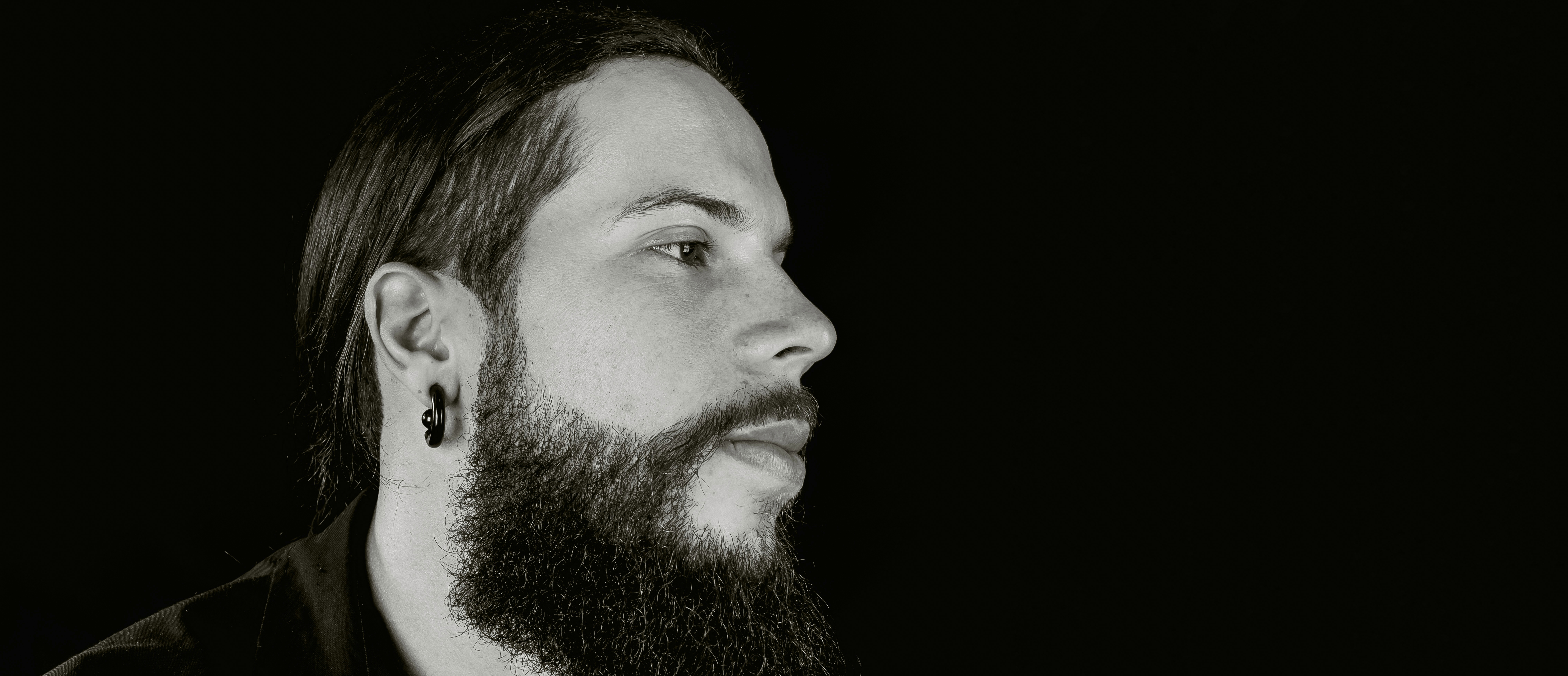
The Art of Subtle Beauty Editing: Enhancing Without Overdoing
When I first started retouching portraits, I made a mistake I see many editors make: I assumed more editing meant better results. I’d smooth every pore, brighten every highlight, and blur away every hint of texture. The photos looked plasticky and lifeless—nothing like the confident, genuine people I’d photographed.
Over the years, I’ve learned that the best beauty editing is the kind nobody notices. It’s about enhancing what’s already there, not creating someone new. Let me walk you through how we can achieve that balance.
Understanding Your Client’s Real Concerns
Before opening Photoshop or Lightroom, I always have a conversation with my clients. What bothers them? Usually, it’s not about erasing their entire face—it’s specific. Maybe they’re self-conscious about temporary redness, or they want their eyes to pop a bit more. One client mentioned she always felt tired in photos, even when she wasn’t.
When we’re clear on these concerns, our editing becomes purposeful. We’re not guessing; we’re solving real problems. This focused approach keeps us from over-processing and maintains authenticity.
The Foundation: Working Non-Destructively
I always start in Lightroom before moving to Photoshop. This workflow protects the original file and lets me make global adjustments first. Here’s my process:
In Lightroom, I adjust:
- Clarity (+5 to +15 for definition without harshness)
- Vibrance (lifting skin tones naturally, typically +10 to +20)
- Shadows and highlights (bringing back dimension)
- Whites and blacks (never crushed—we want detail)
These global adjustments handle maybe 70% of the work. The remaining 30% happens in Photoshop where we’re precise.
Skin Retouching: The Frequency Separation Technique
This is where technique matters most. I use frequency separation because it separates texture from color and tone—meaning we can address blemishes without making skin look airbrushed.
Here’s how we set it up:
- Duplicate your layer twice. Name them “Texture” and “Color.”
- On the Color layer, apply High Pass filter (3-5 pixels) then invert it.
- On the Texture layer, apply High Pass filter (8-12 pixels).
- Set the Color layer to Linear Light blend mode. Set Texture layer to Overlay.
Now we can work on each independently. Use the Healing tool on the Color layer for blemishes, and the Clone tool on the Texture layer for texture refinement. The beauty? Skin keeps its natural grain.
Eyes: Subtle Enhancement That Makes Impact
Eyes are where we see personality. I brighten them carefully, not dramatically. Here’s what I do:
- Create a new layer and select the iris with the Elliptical Marquee Tool
- Feather the selection (5-8 pixels) to avoid hard edges
- Increase clarity and vibrance on this layer only
- Lower opacity to 40-60% so the enhancement feels natural
For the whites, I dodge them slightly on a separate layer—maybe 15-20% opacity. We’re not creating artificial brightness; we’re just removing the tired look.
The Contrast Check
Before finishing, I do something we don’t talk about enough: I zoom out. At 100% view, our edits always look good. At 50%, they look real. I zoom between these frequently while working, asking myself: “Does this look like the person in the photo, just their best self?”
When to Stop
The hardest part of beauty editing isn’t the technique—it’s knowing when we’re done. I use this test: Can I point to what I changed, or does the image just look… better? If I can point to it, I’ve probably overdone it.
Every portrait tells a story. Our job isn’t to erase that story—it’s to let it shine through clearly, with confidence.
Comments (8)
I've watched a dozen tutorials on this and yours is the clearest by far.
The tip about the art of subtle beauty editi was the missing piece for me. Thank you.
Would love to see a follow-up going deeper into this topic.
Tried this technique this morning. Game changer for real.
Applied this to my portfolio shots and the improvement is noticeable.
Clear and practical. No fluff. Appreciate that.
This is exactly what I needed today. Been struggling with this for weeks.
Really solid breakdown. This pairs perfectly with the photography work I've been writing about.
Leave a Comment