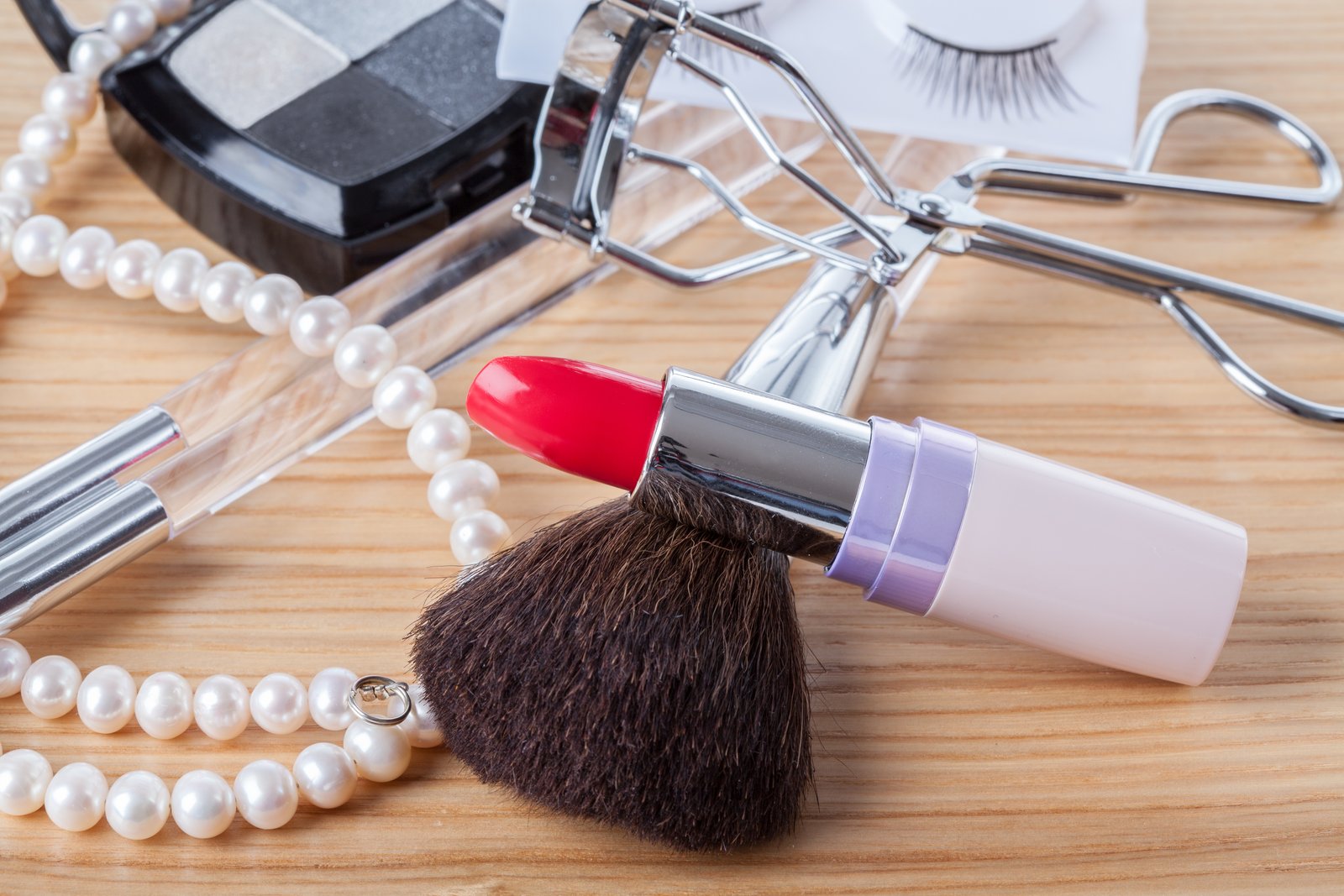
A few years into freelancing for beauty brands, I got a file back from an art director with a single comment: “The lipstick looks painted on.” I had spent probably 45 minutes on that mouth. I had smoothed, I had colored, I had dodged and burned. And somehow I had made it look less real than when I started.
That note sent me back to my monitor at 11pm to figure out what I had actually done wrong. The answer was not that I had worked too hard. The answer was that I had worked on the wrong things, in the wrong order, at the wrong layer depth. Makeup retouching is one of the most technically specific skills in portrait work, and most tutorials skip straight to the fun part without explaining why the sequence matters.
What Makeup Retouching Actually Means at the Pixel Level
Makeup in a photograph lives on top of skin texture, which means it behaves differently than bare skin in your file. When foundation is applied unevenly in real life, or mascara has smudged under the eye, what you are seeing is a color and tone problem sitting on a surface that still has pores, fine lines, and follicles underneath it.
If you blur or clone directly on a flattened layer to fix that, you are destroying the texture while you fix the color. The result is that “painted on” look, because real makeup does not erase skin texture. It sits on top of it. Your retouching has to do the same thing.
This is why frequency separation is the foundation of good makeup work, not just a trendy technique. It lets you separate color and tone information (the low frequency layer) from texture information (the high frequency layer) so you can fix the lipstick bleed on a model’s upper lip without touching the skin detail underneath.
The Layer Stack I Use for Every Makeup Retouch
I set up my frequency separation with a Gaussian blur of 6-8 pixels for beauty work at full resolution (typically a 50 megapixel file from a medium format camera, or a 24 megapixel full frame file). For web-resolution work, I drop that to 3-4 pixels. The exact number matters less than being consistent so you develop muscle memory for how each layer looks.
My stack, from bottom to top, looks like this: the original file, a low frequency layer (color and tone), a high frequency layer (texture), then a curves adjustment layer, then a Hue/Saturation layer clipped to a selection mask, then a clean-up group for any spot work. I name my actions after movies because it helps me remember what they do. The one that builds this stack is called “The Royal Tenenbaums,” which is an arbitrary choice I made in 2019 and will never change.
For lipstick corrections, I work almost entirely on the low frequency layer using a soft brush at 10-15% opacity, sampling color from the center of the lip where the product applied cleanly. I am essentially painting the correct color over the bled or uneven areas. Because texture is on a separate layer, the pores and fine lines show through and the result reads as real.
Eyeshadow Is a Different Problem Than Lip Color
Eyeshadow sits in the crease of a moving lid, which means the texture underneath it shifts with every blink. When you photograph someone and the shadow has creased or faded, the fix is less about color correction and more about shape correction.
I use the Liquify tool here more than most retouchers will admit. A very small forward warp brush, somewhere around 30-50px at 100% resolution, lets me gently push the edge of a shadow back to where it should be before I touch the color. I am fixing the geography before I fix the paint. Once the shape is right, I go back to the low frequency layer and sample from the densest part of the shadow to fill in the fade.
For mascara smudges, my go-to is a clone stamp at 30% opacity on a new empty layer, set to Current and Below, sampling from clean skin adjacent to the smudge. I never clone at 100% opacity in a makeup retouch. Not once. The build-up approach gives you control that a single pass will never give you.
The Hardest Part Is Knowing When to Stop
Early in my retouching career, I would keep going until everything looked perfect to me at 100% zoom. The problem is that no one views a portrait at 100% zoom. No magazine, no billboard, no Instagram post. When I finally started evaluating my work at the intended output size, I realized I had been over-working edits that would never be visible and sometimes destroying natural-looking areas in the process.
I keep a print in my office from my first year of retouching. The skin looks like a wax figure. The lips are a solid flat shape. It is genuinely bad work, and I look at it before I start any new project as a reminder that the goal is not to show how much retouching happened. The goal is to make sure nobody can tell it happened at all.
Now I set a timer. Twenty minutes for a lipstick correction. Thirty for a full eye. When the timer goes off, I zoom out to 25% and take a screenshot to evaluate in my phone’s photo app, which sounds ridiculous but works because a phone screen is closer to how most images are consumed than a calibrated 27-inch monitor.
Checking Your Work Against the Original Skin
Before I flatten and deliver any beauty file, I do one final comparison step that takes about two minutes and has saved me from bad deliveries more times than I can count. I toggle the visibility of my entire retouch group on and off at 25% zoom and watch specifically for areas where the texture pattern changes between before and after.
Texture should look identical everywhere except where the makeup itself sits. If I see a patch of smooth skin next to normal skin anywhere outside the makeup zone, I have over-blended somewhere and I go back in to fix it.
The single most important thing I can tell you about makeup retouching is this: protect the texture first, and everything else becomes easier to control.
Comments
Leave a Comment