How to Smooth Skin in Photoshop Without Losing Texture

How to Smooth Skin in Photoshop Without Losing Texture

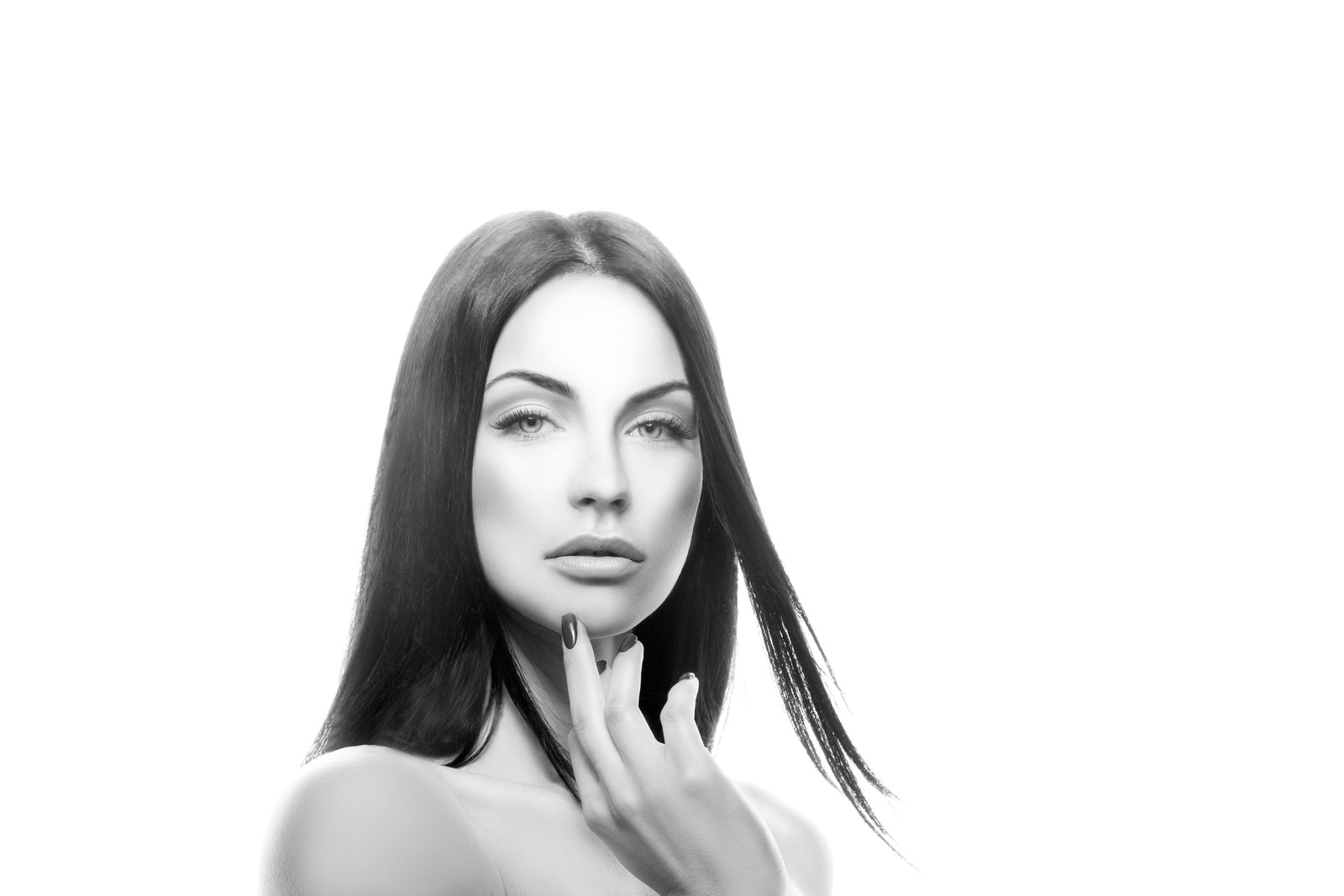
Every portrait retoucher faces the same challenge: how do you smooth skin without making it look like plastic? The answer is frequency separation — a technique that separates your image into texture and color layers, letting you work on each independently. The Basic Setup Duplicate your background layer twice Name the top layer “Texture” and the bottom “Color” On the Color layer, apply Gaussian Blur (radius 6-10 pixels depending on resolution) On the Texture layer, go to Image > Apply Image, select the Color layer, set blending to Subtract, Scale 2, Offset 128 Set the Texture layer blend mode to Linear Light Working the Color Layer Select the Color layer and use a soft brush with the Mixer Brush tool (or just a regular brush at low opacity).

Frequency Separation: The Game-Changing Technique for Flawless Skin

Frequency Separation: The Game-Changing Technique for Flawless Skin

Frequency Separation: The Game-Changing Technique for Flawless Skin When I first learned frequency separation, I felt like I’d unlocked a secret level in portrait retouching. This technique completely transformed how I approach skin editing—and I want to share exactly why it works and how you can master it too. Frequency separation lets us do something that feels almost magical: edit skin texture and skin tone separately. Before I understood this method, I’d spend hours trying to smooth blemishes without losing natural detail, or brightening skin tone without creating that plasticky, over-processed look.

Frequency Separation: The Game-Changing Technique for Flawless Portrait Skin

Frequency Separation: The Game-Changing Technique for Flawless Portrait Skin

Frequency Separation: The Game-Changing Technique for Flawless Portrait Skin When I first learned about frequency separation, it transformed how I approach portrait retouching. Instead of struggling to smooth skin without losing texture, or fix color issues without creating a plastic appearance, I suddenly had a technique that lets me work on these problems independently. If you’ve felt frustrated trying to retouch skin naturally, I’m excited to walk you through this method.

Frequency Separation: The Game-Changing Technique for Flawless Portrait Retouching

Frequency Separation: The Game-Changing Technique for Flawless Portrait Retouching

Frequency Separation: The Game-Changing Technique for Flawless Portrait Retouching When I first discovered frequency separation, I felt like I’d unlocked a secret level in portrait retouching. This technique transformed how I approach skin editing, giving me surgical precision over texture and color independently. If you’re ready to elevate your portrait work beyond basic blemish removal, I’m excited to walk you through this powerful method. What Is Frequency Separation? Frequency separation splits your image into two layers: one containing color and tone information (low frequency), and another capturing texture and detail (high frequency).

Frequency Separation Mastery: The Game-Changing Technique for Flawless Skin

Frequency Separation Mastery: The Game-Changing Technique for Flawless Skin

Frequency Separation Mastery: The Game-Changing Technique for Flawless Skin When I first discovered frequency separation, it completely transformed how I approach portrait retouching. This technique lets us separate texture from color and tone, giving us unprecedented control over skin refinement. Instead of fighting between smooth skin and natural detail, we get both. Let me walk you through exactly how to master this game-changing method. What Is Frequency Separation (And Why It Matters) Frequency separation splits an image into two layers: high-frequency (texture and fine details) and low-frequency (color, tone, and larger shapes).