Photoshop

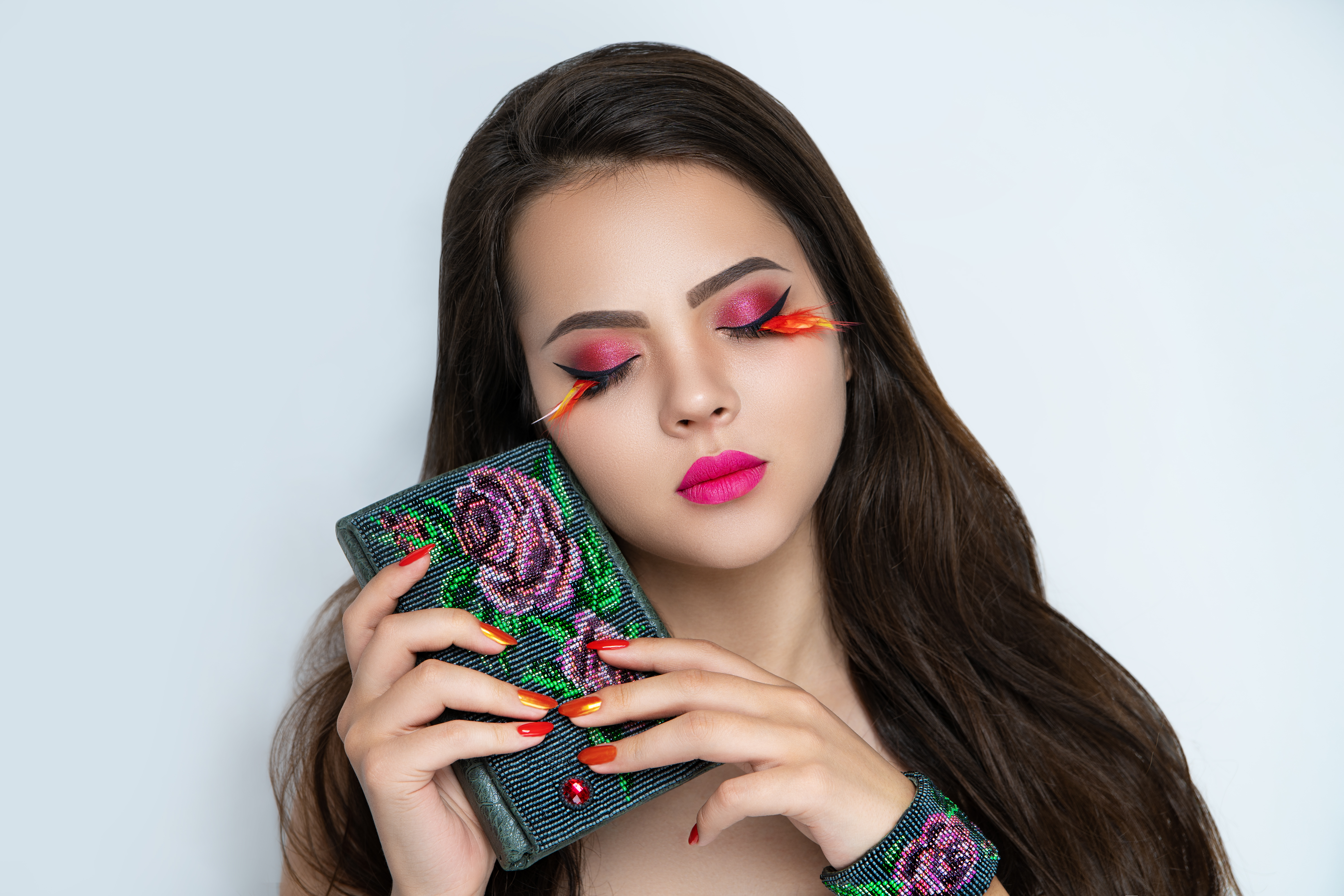
The Best Photoshop Brushes for Portrait Retouching

You don’t need hundreds of brushes for portrait retouching. You need about five, configured correctly. Most professional retouchers use a surprisingly small set of brushes and rely on pressure sensitivity and blend modes to get different effects. Here’s my working brush kit and how I use each one. 1. The Soft Round Brush (Your Workhorse) This is Photoshop’s default round brush with hardness set to 0%. You’ll use this for 70% of your retouching work.

Photoshop

How to Smooth Skin in Photoshop Without Losing Texture

Every portrait retoucher faces the same challenge: how do you smooth skin without making it look like plastic? The answer is frequency separation — a technique that separates your image into texture and color layers, letting you work on each independently. The Basic Setup Duplicate your background layer twice Name the top layer “Texture” and the bottom “Color” On the Color layer, apply Gaussian Blur (radius 6-10 pixels depending on resolution) On the Texture layer, go to Image > Apply Image, select the Color layer, set blending to Subtract, Scale 2, Offset 128 Set the Texture layer blend mode to Linear Light Working the Color Layer Select the Color layer and use a soft brush with the Mixer Brush tool (or just a regular brush at low opacity).

Photoshop

How to Remove Dark Circles Under Eyes in Photoshop

Dark circles under the eyes are one of the most common retouching requests. Almost everyone has them to some degree, and studio lighting tends to make them worse. The trick is reducing them without eliminating them entirely — because removing all shadow from under the eyes creates an uncanny, flat look. Here’s the approach I use on every portrait session. Why You Shouldn’t Just Clone Them Away The first instinct most beginners have is to grab the Clone Stamp and paint cheek skin over the dark area.