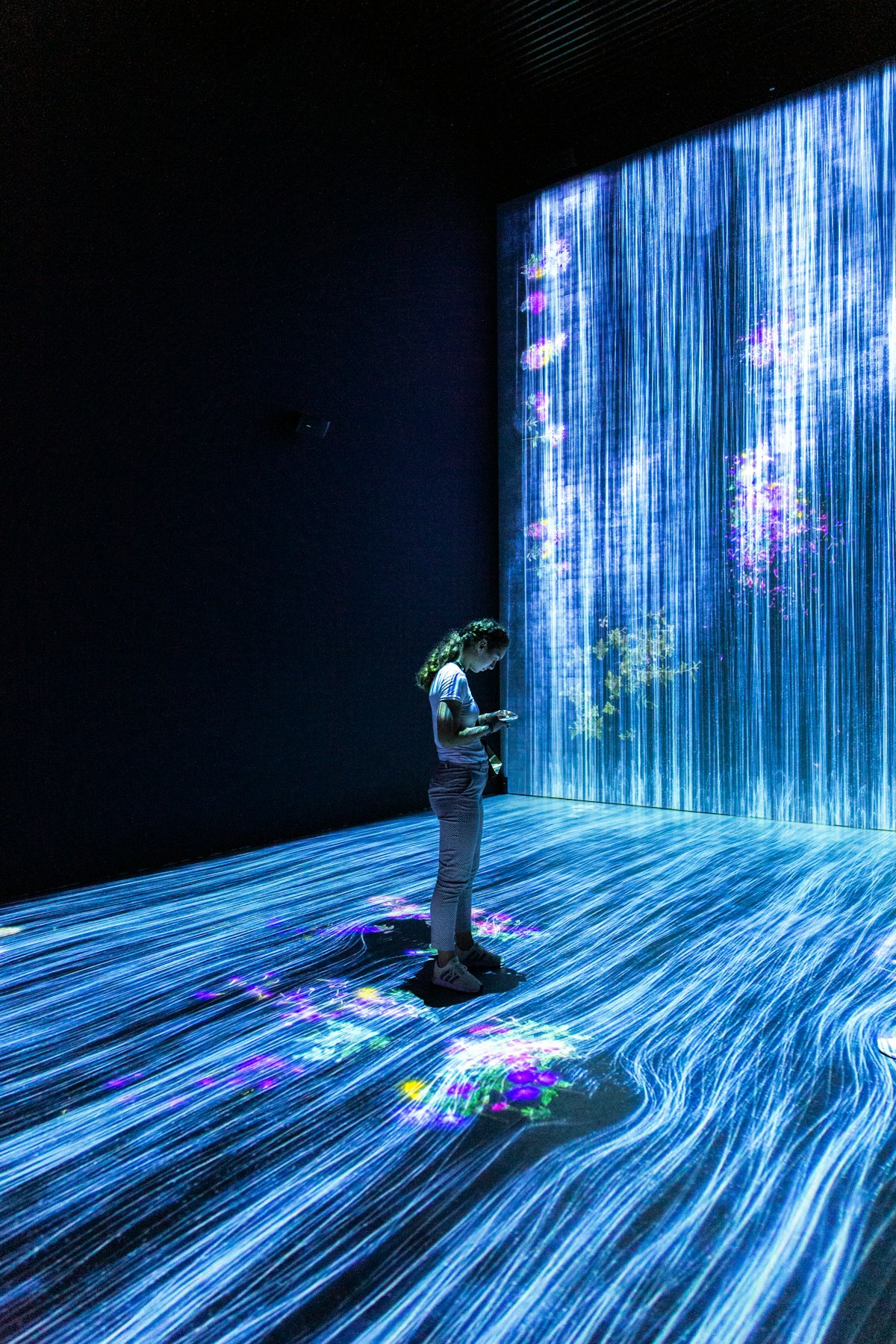
Portrait

Retouching for Different Skin Types and Tones

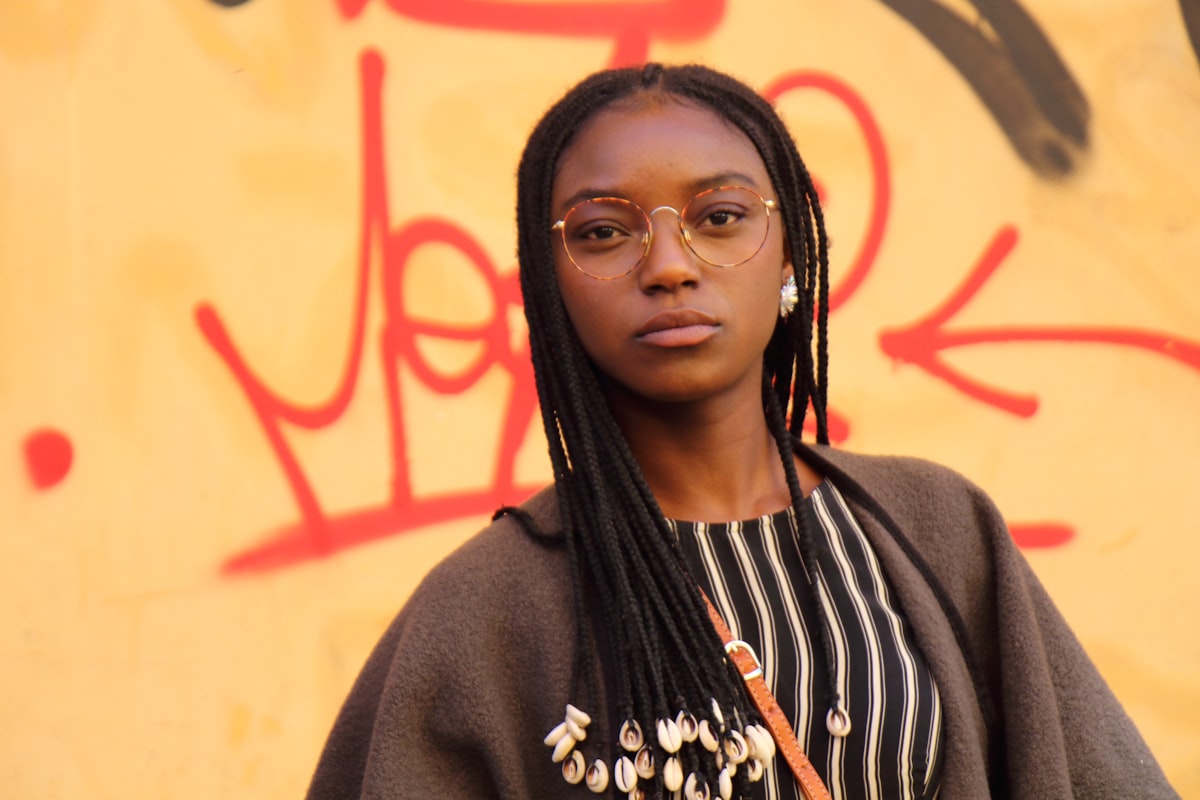
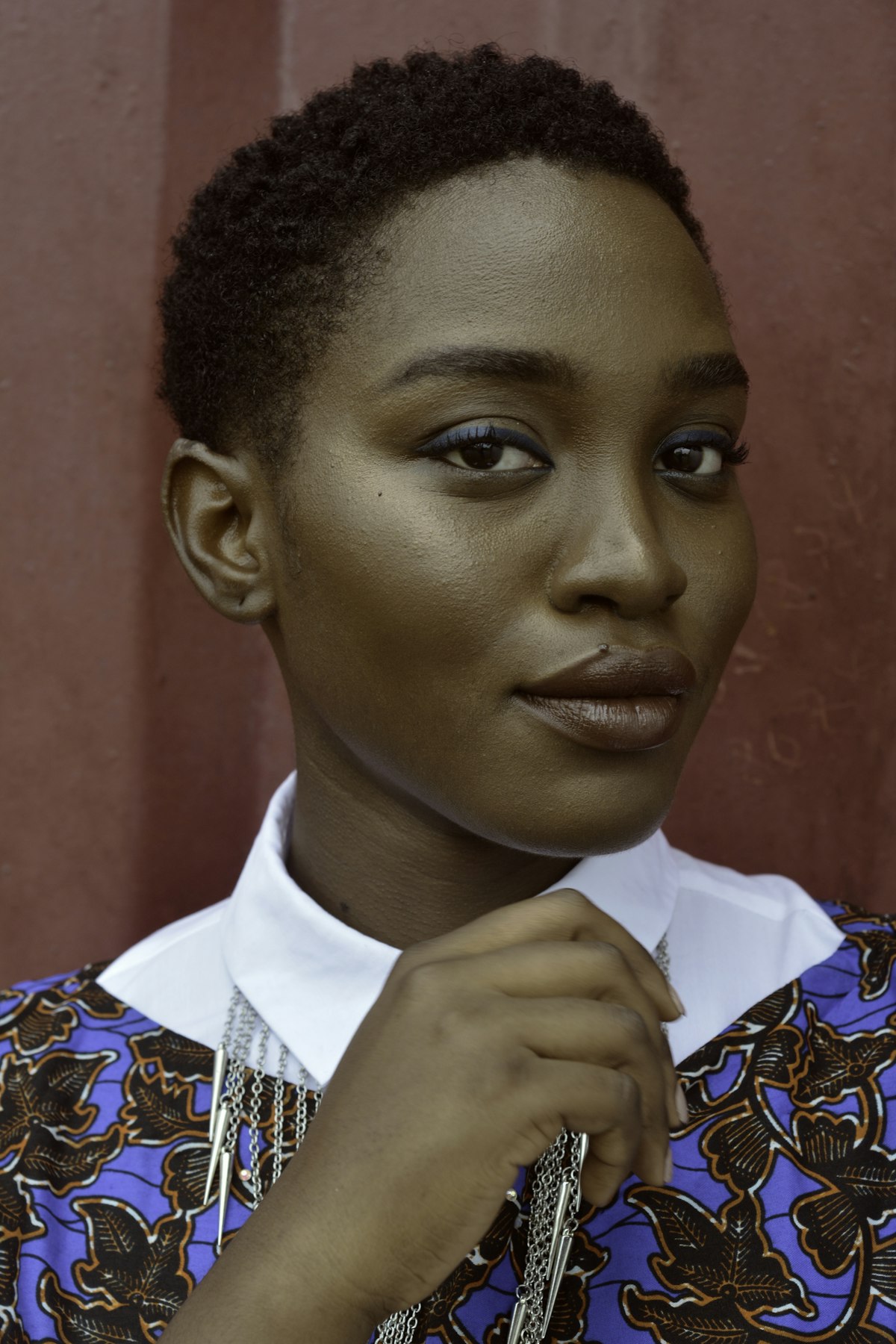
Most retouching tutorials assume a narrow range of skin types — usually fair to medium-toned, smooth skin. But real clients come with every possible combination of skin tone, texture, and type. Your retouching approach needs to adapt. Here’s what I’ve learned from retouching portraits across a wide range of skin types. Darker Skin Tones Darker skin has unique characteristics that affect how you retouch. Specular highlights are more visible. Darker skin reflects light differently, creating stronger, more distinct highlights especially on the forehead, nose, and cheekbones.

Portrait

The Best Photoshop Brushes for Portrait Retouching

You don’t need hundreds of brushes for portrait retouching. You need about five, configured correctly. Most professional retouchers use a surprisingly small set of brushes and rely on pressure sensitivity and blend modes to get different effects. Here’s my working brush kit and how I use each one. 1. The Soft Round Brush (Your Workhorse) This is Photoshop’s default round brush with hardness set to 0%. You’ll use this for 70% of your retouching work.

Portrait

Speed Retouching: Professional Results in Under 5 Minutes

Not every portrait gets 90 minutes of retouching. Event photographers might deliver 200 images from a single shoot. Corporate headshot sessions might produce 30 portraits in an afternoon. You need a fast workflow that still looks professional. Here’s my 5-minute retouching process, broken into steps that I time myself on. Minute 1: Healing Pass Open the image and immediately create a new blank layer. Select the Healing Brush, set to “Sample All Layers,” and quickly remove:

Portrait

Converting Portraits to Black and White: A Retoucher's Guide

A great black and white portrait isn’t a color portrait with the saturation removed. It’s a fundamentally different interpretation of the image, and the conversion process gives you enormous creative control if you know how to use it. Here’s why “just desaturate” is the worst way to convert, and what to do instead. Why Desaturation Fails When you desaturate an image (Image > Adjustments > Desaturate), Photoshop converts each pixel to a gray value based on a fixed luminosity formula.

Portrait

How to Remove Dark Circles Under Eyes in Photoshop

Dark circles under the eyes are one of the most common retouching requests. Almost everyone has them to some degree, and studio lighting tends to make them worse. The trick is reducing them without eliminating them entirely — because removing all shadow from under the eyes creates an uncanny, flat look. Here’s the approach I use on every portrait session. Why You Shouldn’t Just Clone Them Away The first instinct most beginners have is to grab the Clone Stamp and paint cheek skin over the dark area.

Portrait

Dodge and Burn for Portrait Photographers: The Complete Guide

Dodge and burn is the oldest retouching technique in photography — darkroom printers have been doing it since the 1800s. And it’s still the most powerful tool in a digital retoucher’s arsenal. Why Dodge and Burn? Unlike frequency separation or blur-based techniques, dodge and burn gives you pixel-level control over luminosity. You’re literally painting with light and shadow. This means you can: Smooth skin while preserving 100% of the texture Sculpt facial features Add dimension and depth Direct the viewer’s eye Setting Up Your Dodge and Burn Layers I use two gray layers for non-destructive editing:

Portrait

How to Reshape Features Without Going Overboard

The Liquify tool is the most powerful and most abused tool in portrait retouching. In the right hands, it makes subtle corrections that nobody notices. In the wrong hands, it creates uncanny-valley distortions that scream “this was Photoshopped.” The difference comes down to restraint and technique. When Liquify Is Appropriate Liquify corrections should address things that a slightly different camera angle, focal length, or expression would have changed. Wide-angle lens distortion makes noses look bigger and ears look smaller.

Portrait

How to Add Catchlights and Enhance Eye Detail

The eyes are the first thing people look at in a portrait. If the eyes are dull, the entire image falls flat no matter how good the rest of your retouching is. Enhancing eye detail is one of the highest-impact retouching techniques you can learn. But there’s a fine line between “vibrant, alive eyes” and “alien contact lens advertisement.” Let’s stay on the right side of it. Understanding Catchlights Catchlights are the reflections of light sources visible in the eyes.