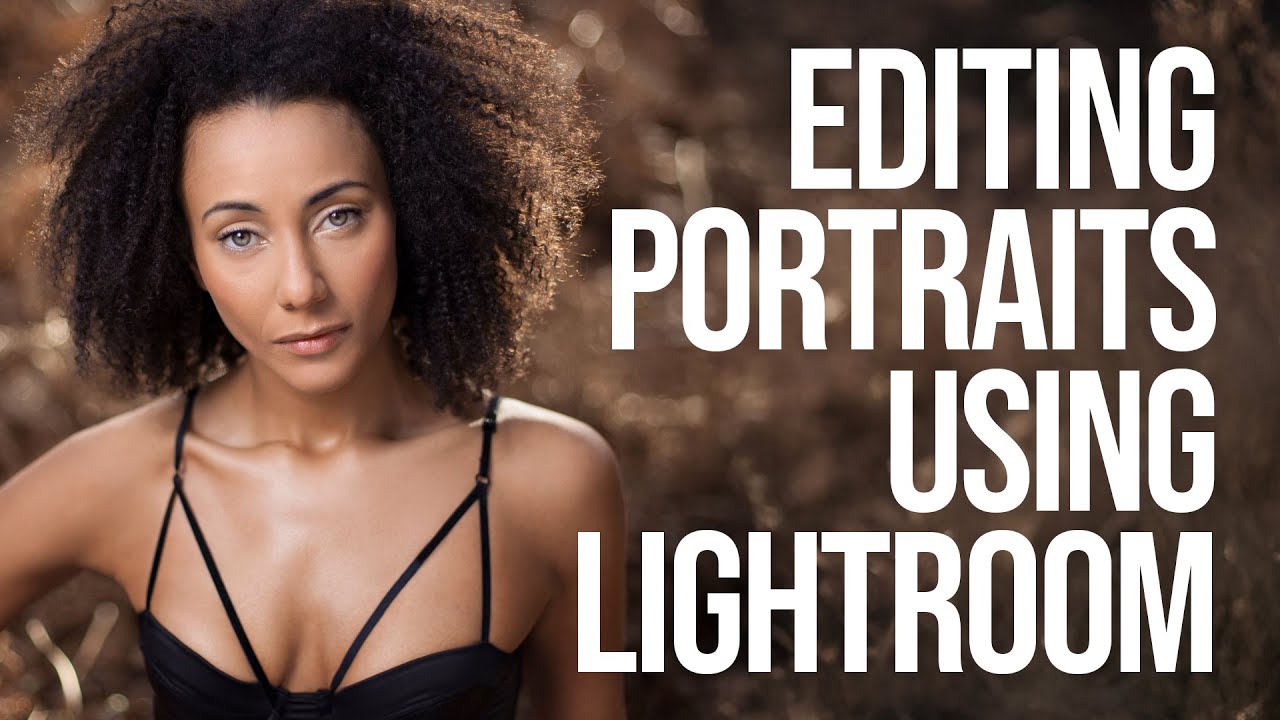
A client came back to me last month with a batch of approved beauty portraits asking for “less processed” skin. My first instinct was to open Photoshop, spin up frequency separation, and work through the layers I know by heart. Then I stopped and asked myself an honest question: was I reaching for complexity out of habit?
That question was still rattling around when I sat down with this Sean Tucker tutorial on editing portraits entirely inside Lightroom, from crop to final sharpening, with no round-trip to Photoshop. I want to walk you through exactly what he does and why it held up better than I expected.
Laying the Foundation Before You Touch Skin
Sean opens with something a lot of retouchers skip: setting the crop before any tonal work. The framing decision shapes everything that follows, and adjusting exposure on a poorly composed frame is working twice. Once the crop is locked, he pulls back highlight recovery on the sky, sliding the Highlights slider down to recover cloud detail without blowing out the rest of the image.
From there he moves into Exposure and Contrast as a pair. His approach here is conservative. He lifts exposure only enough to open the midtones, then uses contrast to separate tonal ranges rather than relying on the automated punch of Clarity. This keeps the skin texture intact before he’s even addressed it directly. Then he steps into the Tone Curve and works in a gentle S-curve, lifting shadows slightly off the bottom to avoid crushing them and bringing the upper midtones up. Nothing dramatic. The goal is dimensionality, not drama.
Color Work That Serves the Subject, Not the Preset
White balance comes next, and Sean’s framing here is practical rather than technical. He adjusts Temperature and Tint until the skin reads as neutral and healthy, checking shadows and highlights separately rather than trusting a single eyedropper click. This matters enormously in beauty work where a slightly magenta cast in the shadows can read as illness on a printed magazine page.
The Color Mixer section is where the tutorial earns its runtime. Sean isolates individual hue ranges to refine skin tone. For a warm-toned subject, he typically moves the Orange hue slightly warmer, reduces Orange saturation to prevent the skin from reading too cartoonish, and lifts the Orange luminance to keep the skin bright without a separate exposure bump. He does the same thing with the Red range as a secondary pass. It’s a two-slider-range approach that gives you more precision than a global saturation move ever will.
Color Grading wraps up the global work. He adds subtle warmth to the highlights and a cooler, slightly desaturated tone to the shadows. The contrast between the two is gentle enough to feel filmic rather than processed.
Dodge and Burn Inside Lightroom: More Capable Than You Think
This is the section that surprised me. Sean spends nearly ten minutes on dodge and burn using Lightroom’s Masking tools, and the results justify every minute. His process uses radial and brush masks with significant feathering, typically set to around 50 percent flow when working with the brush, never full opacity. He builds the effect in layers rather than single heavy strokes.
For dodging (brightening), he targets the high planes of the face: forehead center, nose bridge, cheekbones, chin. Exposure lifts are small, often under plus 0.30. For burning (darkening), he targets the outer edges of the face to sculpt shape, the eye sockets to add depth, and transitions between planes to restore the three-dimensionality that flat lighting can steal. He also uses targeted shadow recovery on the under-eye area by lifting Shadows and reducing Highlights simultaneously inside a single masked region, which softens the dark circle without making the skin look airbrushed.
This is non-destructive, revisable, and faster than most people expect once the muscle memory builds.
Sharpening the Subject, Not the Frame
The final pass uses Lightroom’s Masking slider inside the Detail panel to confine sharpening to areas of genuine edge contrast, primarily the eyes, brows, lips, and hair. Sean holds the Alt key while dragging the Masking slider to see a preview of exactly what’s being sharpened. Anything that stays black in that preview is receiving no sharpening at all. For skin, that’s exactly what we want.
He lands around 70-80 on Amount, keeps Radius below 1.5, and brings Detail down toward 25 to prevent texture amplification on pores.
Where I’d Take This Further
For editorial or high-beauty work, I’d add one step Sean doesn’t include here: a second round of targeted color work on the skin using separate Hue/Saturation masks for any uneven patches. Lightroom’s Color Range masking tool lets you sample a specific skin tone and create a mask around just that color family. Where redness or sallowness has pooled unevenly, you can desaturate or shift hue on that region alone without touching the rest of the image. Combined with Sean’s dodge and burn approach, it gets you very close to the kind of even, healthy skin result that used to require Photoshop’s healing work.
That said, for commercial lifestyle work, editorial portraits, and anything where the client relationship is built on speed and turnaround, Sean’s workflow as shown is genuinely complete. The one-tool constraint isn’t a limitation. It’s a discipline that keeps you honest about what actually needs fixing.
The most important thing I took from this tutorial is something Sean states plainly near the end: most retouching problems are actually lighting problems, and good technique amplifies what’s already in the file rather than manufacturing something that wasn’t there. Watch the full video for the visual demonstration, especially the dodge and burn section, which is much easier to follow when you can see the mask overlays in motion.
Watch the full tutorial on Sean Tucker’s YouTube channel.
Comments
Leave a Comment