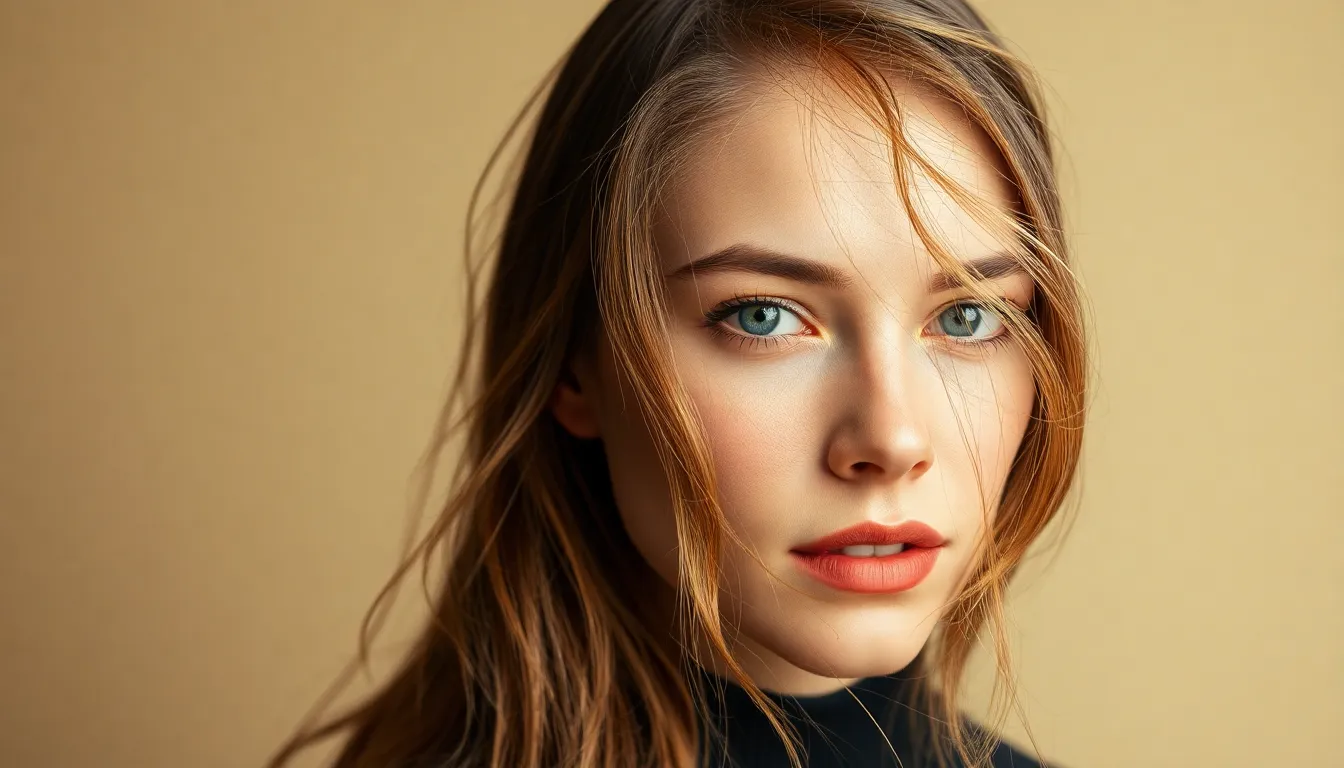
Hair Retouching in Portraits: The Art of Natural Enhancement
When we’re retouching portraits, hair often gets overlooked—but it shouldn’t. Beautiful hair can completely transform a portrait, while poorly executed hair edits are immediately noticeable and can undo all your other hard work. I’ve spent years perfecting hair retouching techniques, and I’m excited to share what I’ve learned with you.
The key to successful hair retouching is understanding that less is often more. We’re not trying to transform someone’s hair; we’re enhancing what’s already there and fixing the things that bother us about the original photo.
Start with Flyaway Control
Flyaways are the bane of portrait photographers everywhere. Rather than cloning them out completely, I’ve found a gentler approach works best.
First, create a new layer and set it to Healing Brush mode. In Photoshop, I use the Healing Brush tool at 20-30% opacity with a soft, small brush (around 15-20 pixels). This allows me to gently blend flyaways into the surrounding hair instead of erasing them entirely. The key is making multiple light strokes rather than one heavy stroke.
For stubborn flyaways near the hairline, I’ll sometimes use the Clone tool instead, sampling from nearby hair with similar direction and texture. The difference is that Clone simply copies pixels, while Healing blends them—and blending looks more natural for hair.
Adding Volume and Dimension
Volume makes hair look healthier and more three-dimensional. Here’s my approach:
On a new layer, I use the Dodge tool (set to Highlights, 30% exposure) to gently brighten areas where light naturally hits the hair—usually the crown and outer edges. This creates the illusion of dimension without looking artificial.
Then, on another layer, I use the Burn tool (set to Shadows, 20% exposure) to subtly deepen shadows in the hair’s interior. This creates contrast that reads as volume. I’m very conservative here—remember, we’re enhancing, not dramatically changing.
Fixing Damaged or Thin Hair Areas
Sometimes we’re working with clients who have thinning hair, damage, or sparse areas they’d like improved. This requires a different technique.
Create a new layer and use the Clone tool at 40-50% opacity. Instead of cloning from the exact same spot, sample from nearby hair with similar texture and direction. Work in small sections, and make sure your brush size matches the scale of what you’re cloning—fine hair needs a fine brush.
The low opacity is crucial here. It allows us to build up coverage gradually while maintaining the texture and pattern of the original hair. We’re adding density, not creating obvious duplicated sections.
Enhancing Shine and Highlights
Beautiful shine is one of the most noticeable improvements we can make. Create a new layer set to Screen blending mode at 30-40% opacity. Using a soft, small brush with white color, paint subtle highlights where light naturally catches the hair. This typically means the crown, sides, and any strands catching direct light.
Zoom in close and use very light touches. You’re looking for a gentle glow, not shiny streaks.
The Final Check
Before finishing, zoom out to 100% and view your work from a normal distance. Step back from the screen if possible. Hair retouching should feel invisible—the viewer shouldn’t be able to point to something and say “that’s been retouched.”
If you find yourself thinking “that looks really edited,” it’s time to dial it back. We’re not creating fantasy; we’re creating the best version of reality.
Hair retouching is a skill that improves with practice, and I encourage you to experiment with these techniques on different hair types and textures. You’ll develop your own preferences and shortcuts along the way. The most important thing is approaching each portrait with patience and a gentle touch.
Comments
Leave a Comment