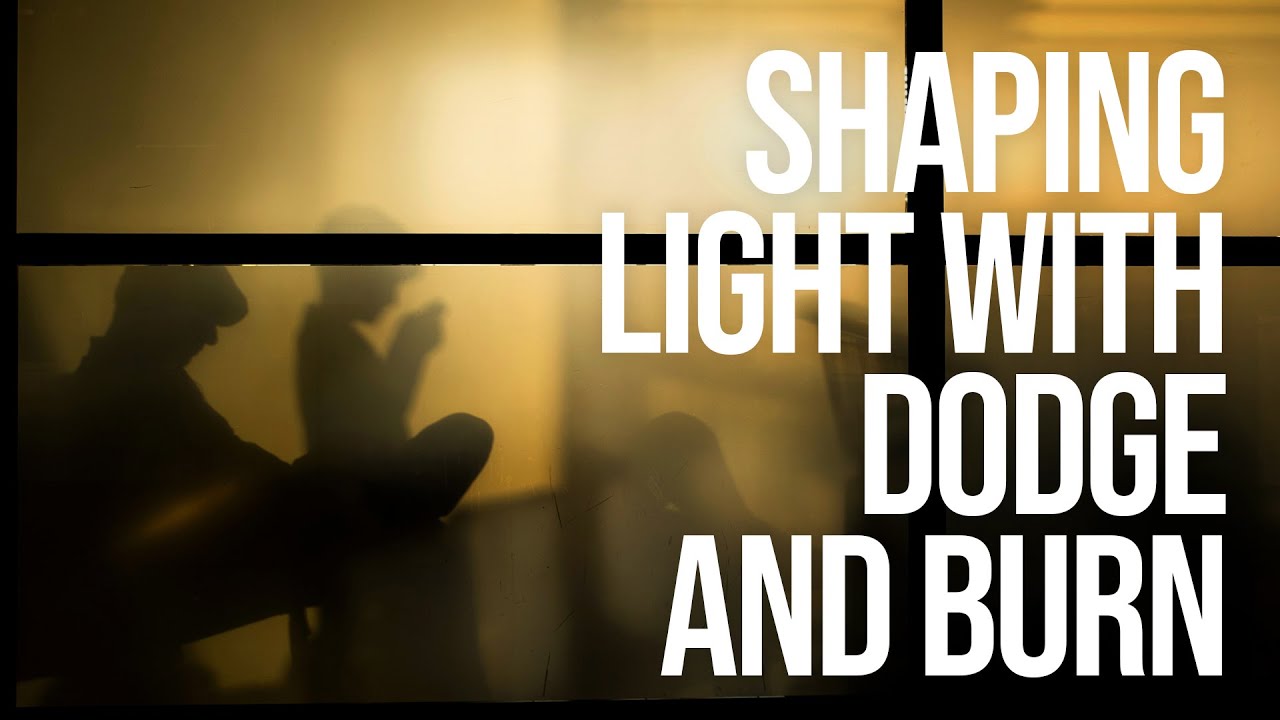
There’s a specific kind of frustration that comes from photographing a subject in beautiful light and then watching that light flatten out the moment you open the file. The highlights that looked dimensional in the studio read as a blown patch on screen. The shadow that gave her cheekbone its shape disappears into the midtones. The camera captured what was there, not what you saw. For years, my answer to this problem was to push sliders around in Lightroom and hope for the best. It worked, sometimes. But it never felt like sculpting — it felt like guessing.
Dodge and burn is the technique that changed that for me, and in Watch the full tutorial on YouTube, Sean Tucker walks through exactly how he approaches it in Photoshop. What I appreciate about his method is that he doesn’t skip the history. Understanding that photographers were physically blocking and redirecting light in darkrooms long before software existed makes the concept click in a way that menu instructions never quite do. This isn’t a digital trick. It’s a translation of a craft.
What follows is my working breakdown of the technique Sean demonstrates, written so you can follow along in Photoshop without pausing every thirty seconds. I’ve added a few notes from my own retouching practice where the workflow diverges slightly for beauty and portrait work.
Step 1: Understand What You’re Actually Doing
 Darkroom enlarger concept illustrated with light and paper
Before touching a single tool, get clear on the goal. Dodging means reducing the light that hits a specific area, which in the darkroom made that area lighter in the final print. Burning means adding more light, which darkened the area. Photoshop flips the vocabulary to match the result: dodge brightens, burn darkens. Sean frames the whole technique as light-shaping rather than retouching, and that mental shift matters. We’re not fixing the image. We’re continuing the lighting decisions that started in camera.
Darkroom enlarger concept illustrated with light and paper
Before touching a single tool, get clear on the goal. Dodging means reducing the light that hits a specific area, which in the darkroom made that area lighter in the final print. Burning means adding more light, which darkened the area. Photoshop flips the vocabulary to match the result: dodge brightens, burn darkens. Sean frames the whole technique as light-shaping rather than retouching, and that mental shift matters. We’re not fixing the image. We’re continuing the lighting decisions that started in camera.
Step 2: Set Up a Neutral Gray Layer for Non-Destructive Editing
 Capture One brush dodge-and-burn workflow briefly shown
Rather than painting directly on the image, Sean works on a separate layer filled with 50% gray. To do this yourself: create a new layer, go to Edit > Fill, and choose 50% Gray from the Contents dropdown. Then change that layer’s blending mode to Overlay (or Soft Light, which is gentler and my personal preference for skin work). At 50% gray, the layer is completely invisible in these blending modes. The magic is that anything lighter than 50% gray on that layer will brighten the image below, and anything darker will darken it. You’re painting light, not pixels.
Capture One brush dodge-and-burn workflow briefly shown
Rather than painting directly on the image, Sean works on a separate layer filled with 50% gray. To do this yourself: create a new layer, go to Edit > Fill, and choose 50% Gray from the Contents dropdown. Then change that layer’s blending mode to Overlay (or Soft Light, which is gentler and my personal preference for skin work). At 50% gray, the layer is completely invisible in these blending modes. The magic is that anything lighter than 50% gray on that layer will brighten the image below, and anything darker will darken it. You’re painting light, not pixels.
This approach is non-destructive, which means you can lower the layer’s opacity, erase mistakes, or throw the whole thing away without touching your original. Name the layer something you’ll recognize. I call mine after the effect I’m going for — not after movies, contrary to what you might expect from me.
Step 3: Create Separate Layers for Dodging and Burning
 Studio portrait file open, starting detail work in Photoshop
Sean recommends making two gray layers: one dedicated to brightening (dodging) and one dedicated to darkening (burning). Having them separate gives you independent control over each. You can reduce the opacity of your burn layer without affecting your dodge layer, which is useful when you’ve gone too heavy on the shadows and need to dial back. Label them clearly. “Dodge” and “Burn” works. So does any system you’ll actually remember at 11pm when you’re on your third cup of tea and finishing a deadline project.
Studio portrait file open, starting detail work in Photoshop
Sean recommends making two gray layers: one dedicated to brightening (dodging) and one dedicated to darkening (burning). Having them separate gives you independent control over each. You can reduce the opacity of your burn layer without affecting your dodge layer, which is useful when you’ve gone too heavy on the shadows and need to dial back. Label them clearly. “Dodge” and “Burn” works. So does any system you’ll actually remember at 11pm when you’re on your third cup of tea and finishing a deadline project.
Step 4: Paint with a Soft Brush Using Low Opacity
 Curves adjustment layer created above portrait layer
With your gray layer selected, grab a soft round brush. Set the opacity low, somewhere between 5 and 15 percent. Sean is deliberate about this: the effect should build gradually through multiple passes, not land in one heavy stroke. For dodging, paint with white. For burning, paint with black. On the Overlay or Soft Light blending mode, these will translate into subtle brightening or darkening on your image.
Curves adjustment layer created above portrait layer
With your gray layer selected, grab a soft round brush. Set the opacity low, somewhere between 5 and 15 percent. Sean is deliberate about this: the effect should build gradually through multiple passes, not land in one heavy stroke. For dodging, paint with white. For burning, paint with black. On the Overlay or Soft Light blending mode, these will translate into subtle brightening or darkening on your image.
For portrait and beauty work, I keep my brush opacity even lower than Sean demonstrates for street scenes, often around 7 to 10 percent. Skin reads every heavy-handed stroke, and the goal is for the light to look like it was there all along.
Step 5: Use Curves Adjustments for Targeted Tonal Control
 Curves adjustment panel open with S-curve adjustment visible
Sean also demonstrates using Curves adjustment layers clipped to the image as an alternative or complement to the gray layer method. A Curves layer gives you more precise tonal control than simply painting gray. Create a Curves adjustment layer, clip it to your image, and use the layer mask (which defaults to white, meaning the adjustment applies everywhere) to paint away the effect with a black brush where you don’t want it, or invert the mask to black and paint the effect back in only where you do.
Curves adjustment panel open with S-curve adjustment visible
Sean also demonstrates using Curves adjustment layers clipped to the image as an alternative or complement to the gray layer method. A Curves layer gives you more precise tonal control than simply painting gray. Create a Curves adjustment layer, clip it to your image, and use the layer mask (which defaults to white, meaning the adjustment applies everywhere) to paint away the effect with a black brush where you don’t want it, or invert the mask to black and paint the effect back in only where you do.
This approach is particularly effective for overall sculpting — pulling down the exposure across a background or lifting the light across an entire side of the face — while the gray layer method works better for fine detail work like emphasizing the rim of an eyelid or the curve of a lip.
Step 6: Use a Reduced Opacity on the Burn Layer to Avoid Muddying the Shadows
 Gray layer in Overlay mode showing invisible neutral gray
One of the most practical points Sean makes is about restraint on the dark side. Over-burning is one of the most common mistakes in portrait retouching (I say this as someone who absolutely over-burned an entire series of bridal portraits early in my career and heard about it from the client). Darkening too aggressively creates areas that look muddy or artificially shadowed rather than naturally lit. After you’ve finished painting on your burn layer, try dropping its opacity to 60 or 70 percent and see if the image still reads well. More often than not, the subtler version is the right one.
Gray layer in Overlay mode showing invisible neutral gray
One of the most practical points Sean makes is about restraint on the dark side. Over-burning is one of the most common mistakes in portrait retouching (I say this as someone who absolutely over-burned an entire series of bridal portraits early in my career and heard about it from the client). Darkening too aggressively creates areas that look muddy or artificially shadowed rather than naturally lit. After you’ve finished painting on your burn layer, try dropping its opacity to 60 or 70 percent and see if the image still reads well. More often than not, the subtler version is the right one.
A Note on Applying This to Skin Specifically
Sean’s tutorial covers both street photography and portrait work, and his principles apply across both. But skin has one additional consideration worth naming: texture direction. When you dodge and burn on skin, your brush strokes should follow the natural contours of the face rather than moving across them. Brightening along the plane of the forehead, following the arc of a cheekbone, darkening into the hollow beneath it. Working against the face’s natural geometry creates a result that looks retouched rather than lit, which is exactly what we’re trying to avoid.
I also recommend zooming out to 50 or 25 percent periodically while you work. It’s easy to lose perspective when you’re working close. What looks precise at 100 percent can look overdone at print size, and vice versa.
The single most important idea in this whole technique is the one Sean opens with: you are shaping light, not correcting a mistake. The camera recorded a moment. You are deciding, after the fact, where the viewer’s eye should go and how the subject should feel. That’s not manipulation. That’s craft.
Watch the full tutorial on YouTube to see Sean walk through both the street and portrait applications with live Photoshop demonstrations.
Comments (2)
Love how you break down complex stuff into manageable steps.
This is fantastic. I've been recommending this approach to my readers too.
Leave a Comment