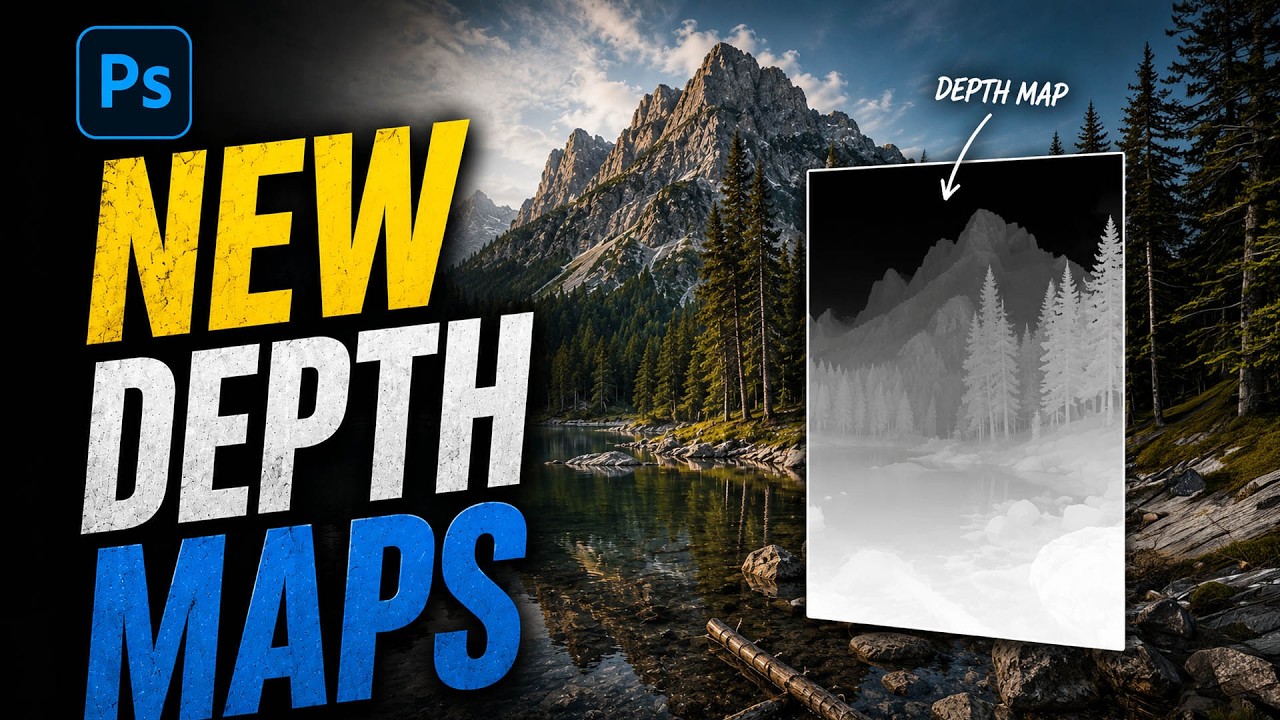
Last month I delivered a set of beauty shots to a skincare client and got back a response I hadn’t heard in a while: “They look a little flat.” Not “plastic” (I fixed that problem years ago, painfully), but flat. Dimensionless. Like the light had been ironed out of the image rather than sculpted into it. I knew what they meant the second I looked at the files again. I’d been so focused on skin work that I’d completely neglected tonal depth.
That’s what sent me back to this tutorial.
In this Matt Kloskowski tutorial on adding depth to photos, Matt walks through a technique centered on luminosity masking to selectively deepen shadows and lift highlights in a way that feels organic rather than processed. If you’ve only used Curves or Dodge and Burn for this kind of work, this approach offers a more targeted, non-destructive path that responds to the actual tonal values already in your image.
Why Luminosity Masks Beat Manual Selections for This Work
The core problem with painting depth by hand, whether with Dodge and Burn or a brush on a Curves layer, is that your edges are always slightly wrong. You’re guessing at where the shadow transitions live. Luminosity masks solve this by building selections directly from the brightness data in the image itself. The mask already knows where the midtones end and the shadows begin, because it’s reading the pixels.
Matt’s approach leans on this principle hard. Instead of targeting a general area of the face or image, the luminosity mask isolates just the tonal range you want to affect, which means your adjustments blend seamlessly without any visible boundary.
The Step-by-Step Breakdown
Here’s how the technique works, translated into steps you can follow without pausing the video every thirty seconds.
Start by loading your luminosity masks. Matt references his Art of Masking panel (linked in the video description at mattk.com/art-of-masking), which automates the generation of these masks, but you can also create them manually through the Channels panel if you prefer to understand what’s happening under the hood.
Once your masks are available, the key decision is which tonal range to target. For adding depth to a portrait, you’re typically working in the darks or the dark midtones, the range where shadows live in skin and fabric and background. In the tutorial, Matt selects a Darks mask rather than the deepest shadows, because going too dark too fast creates a muddy, crushed look rather than genuine depth.
With the mask loaded as a selection, add a Curves adjustment layer. That selection automatically becomes the layer mask. Now bring the curve down slightly in the midpoint, not a dramatic S-curve pull, just a gentle downward nudge. Because the mask is doing the targeting, even a small move produces a noticeable but believable result. If it looks heavy, reduce the layer opacity. Matt suggests starting around 40-60% opacity and working up rather than pulling the curve down aggressively.
For the highlight side, the process mirrors this exactly. Load a Lights or Bright mask, add another Curves layer, and this time nudge the curve gently upward. The effect is subtle separation between the light and dark zones that your eye reads as three-dimensionality even if it can’t consciously identify what changed.
Matt also demonstrates stacking these layers, running both a shadow-deepening and a highlight-lifting pass in sequence, which compounds the dimensional effect without requiring extreme adjustments on either layer.
Where I Modify This for Skin-Heavy Work
This technique is nearly perfect for environmental portraits or product photography where the whole frame benefits from more depth. For close beauty work, I add one step that Matt doesn’t specifically address in this tutorial: I clip a Hue/Saturation layer above the shadow Curves layer and pull the saturation down two or three points on the darks. Deep shadows in skin can shift slightly warm or ruddy under Curves adjustments, and that tiny desaturation keeps the shadow tone neutral without touching the overall color balance of the image.
I also tend to run a second, lighter version of the Darks mask (usually one step up in the mask hierarchy, toward the midtones) and keep it at around 20% opacity as a blending layer between the deepened shadows and the untouched areas. It’s the retouching equivalent of a feathered edge, but one that the image’s own tonal logic creates rather than a brush with a soft tip.
The Difference Between Depth and Darkness
One thing Matt’s tutorial makes clear, and that took me longer to internalize than I’d like to admit, is that adding depth is not the same as making parts of the image darker. Darkness is a value. Depth is contrast between values in a spatially believable way. You can make an image darker overall and lose depth. You can add depth and barely change the histogram. The luminosity mask approach naturally enforces this distinction because you’re adjusting shadows relative to the image’s own structure, not imposing a blanket tone change.
That’s the real shift in thinking this tutorial unlocks. You’re not painting on darkness. You’re revealing the tonal architecture that was already there.
Watch the full tutorial to see Matt demonstrate this visually, because the before-and-after on his sample image makes the effect far more legible than any written description can.
Comments
Leave a Comment