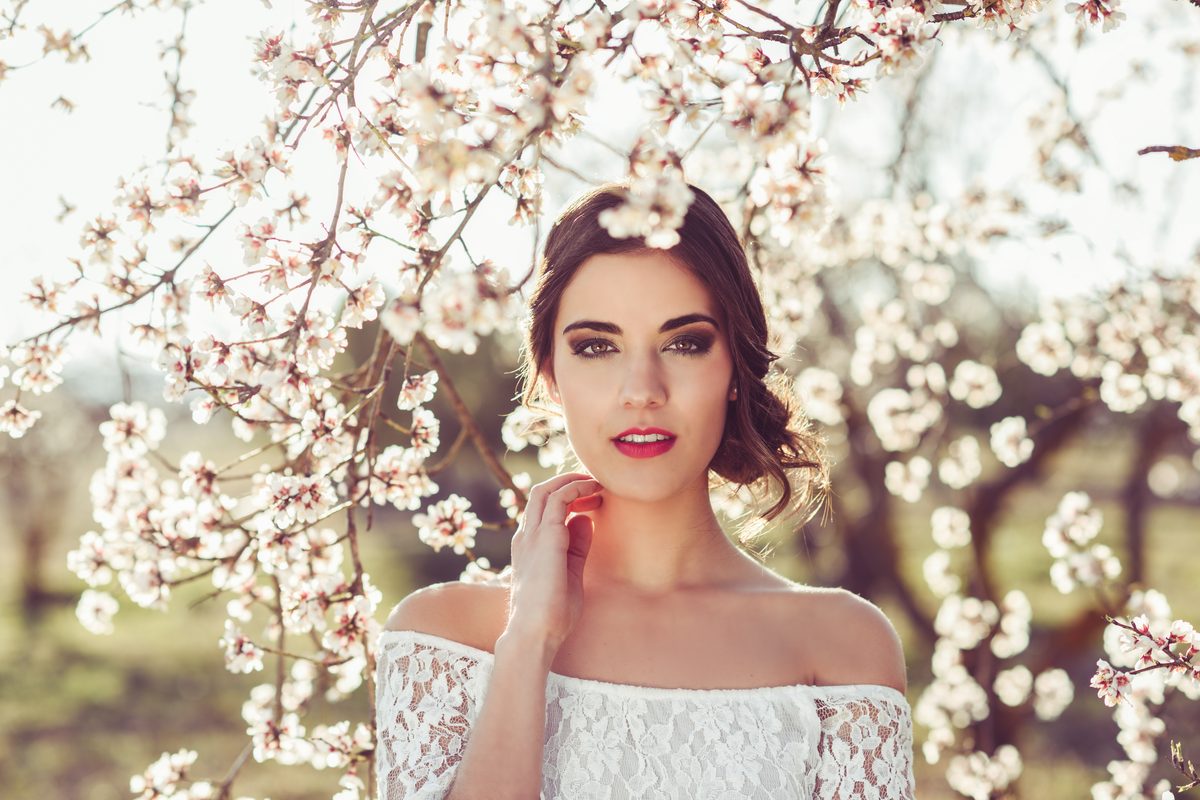
Master Eye Enhancement: A Step-by-Step Guide to Captivating Portrait Eyes
Eyes are the window to the soul—and they’re often the first thing we notice in a portrait. When we enhance eyes thoughtfully, we’re not creating something fake; we’re simply bringing out what’s already there. I’ve spent years perfecting eye enhancement techniques, and I’m excited to walk you through the process that’s transformed how I approach portrait retouching.
Why Eye Enhancement Matters
Before we dive into the how, let’s talk about the why. Eyes carry emotion and connection in a portrait. When lighting was challenging during a shoot, or when a subject was tired, their eyes might not sparkle the way they naturally do. Our job is to restore that life and vitality.
The key is subtlety. We’re not aiming for unnatural, oversaturated eyes that scream “edited.” Instead, we want viewers to feel drawn to the image without quite knowing why—that’s the mark of professional eye enhancement.
Step 1: Create a Dedicated Layer for Eye Work
I always start by creating a new layer for eye enhancements. This non-destructive approach means we can adjust intensity later if needed. In Photoshop, I create a blank layer and set it to “Overlay” mode at 50-70% opacity. This gives us flexibility without committing to permanent changes.
Why overlay mode? It preserves the original texture while allowing our adjustments to blend naturally with the underlying image.
Step 2: Brighten the Eye Whites
Yellowish or dull whites can age a face instantly. Using a soft brush (5-8px, 20-30% opacity), I paint a very light color—almost white with a hint of blue—onto the whites of the eyes. The blue undertone mimics natural eye brightness without looking artificial.
Here’s the technique: sample a bright area from the eye’s inner corner, then gently paint the outer whites. Keep the pressure light; we’re building up brightness gradually rather than covering it in one stroke.
Step 3: Deepen the Iris
This is where magic happens. The iris draws people’s gaze, so we want it to stand out. On a new layer set to “Color Burn” or “Soft Light,” I paint around the iris edges with a color that complements or slightly intensifies the eye’s natural color.
For brown eyes, I use a warm, rich brown. For blue eyes, a deeper blue. The trick is painting only along the iris edge—this creates dimension and makes the iris appear more three-dimensional. I keep my brush opacity around 30-40% to build the effect gradually.
Step 4: Add Catch Lights Strategically
Catch lights—those reflective highlights in the eye—are what make eyes come alive. If the original lighting didn’t create obvious catch lights, we can add them. Using a small, hard brush (3-4px) with white on a new layer, I paint a small highlight in the upper portion of the iris.
Position matters: place it at roughly the 10 or 11 o’clock position on the iris. Keep it small—it should be roughly 1/8th the size of the iris itself. A catch light that’s too large looks artificial.
Step 5: Darken the Lash Line
Defined lash lines naturally frame the eye. Using a dark brown or black on a small brush (2-3px), I carefully trace along the upper lash line, staying close to the lashes. This adds definition without looking like heavy makeup.
For the lower lash line, I’m more subtle—sometimes just a tiny touch at the inner corner is enough.
Step 6: Check Your Work
Here’s my final step: toggle your layers on and off to compare. The enhancement should be noticeable but never obvious. If someone examining your portrait thinks, “those eyes have been edited,” you’ve gone too far. If they think, “what beautiful eyes,” you’ve nailed it.
The Balance We Seek
Eye enhancement is about honoring the person in front of the camera while bringing our best technical skills to the work. We’re not changing anyone; we’re revealing their best self. Start with these techniques, practice on a few portraits, and you’ll develop an intuition for exactly how much enhancement each set of eyes needs.
Your portraits will thank you—and so will your clients.
Comments
Leave a Comment