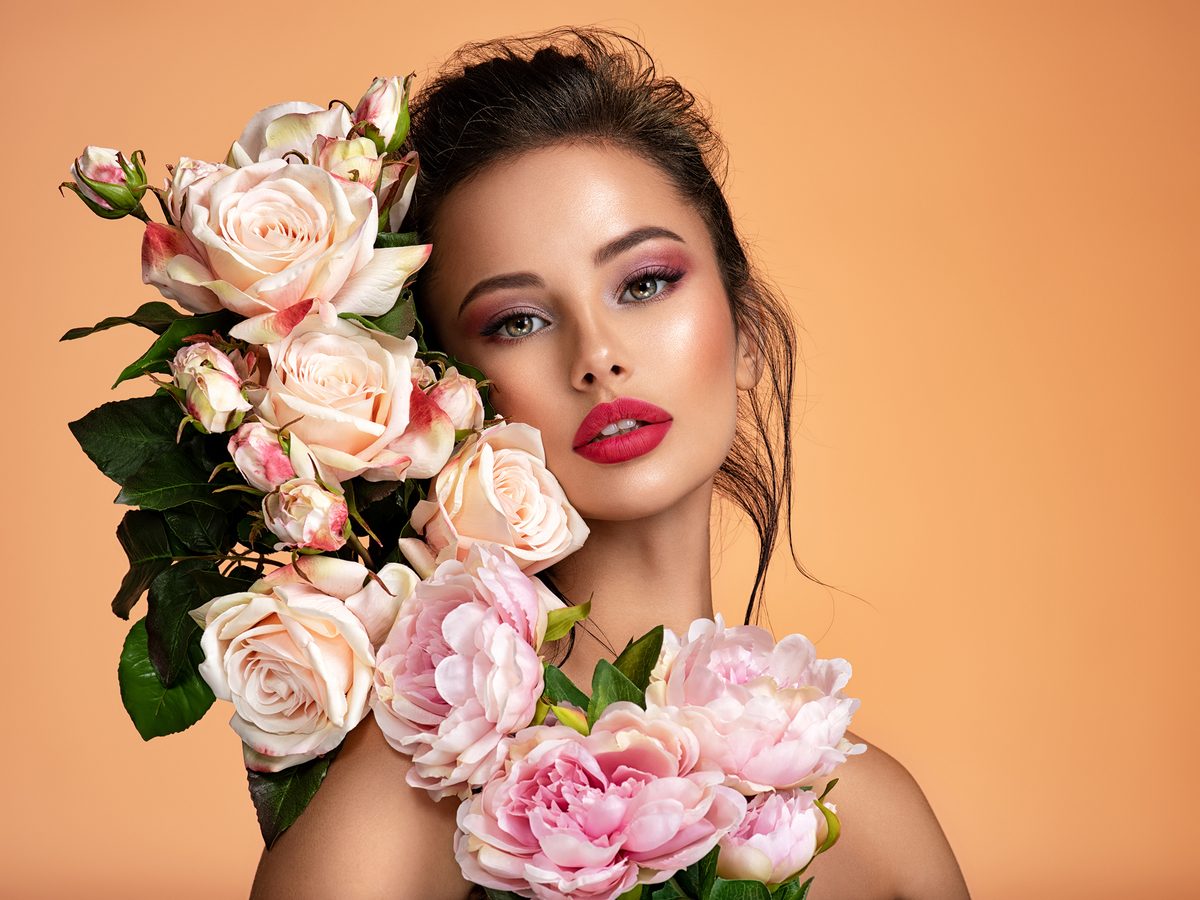
The Art of Skin Retouching: Achieving Natural-Looking Results
When I first started retouching portraits, I made the same mistake many beginners do: I smoothed skin until it looked plastic. My clients didn’t recognize themselves. That’s when I learned that great skin retouching isn’t about perfection—it’s about enhancement that feels authentic.
Today, I want to share what I’ve learned about creating skin that looks healthy, clear, and genuinely human. Whether you’re editing for yourself or clients, these techniques will help you find that sweet spot between polish and natural beauty.
Understanding Your Retouching Goals
Before we touch a single slider, let’s talk intention. Skin retouching typically addresses three concerns: blemishes and temporary imperfections, uneven tone and texture, and overall skin quality. Each requires a different approach.
I always ask myself: “What would this person’s skin look like on their best day?” That’s our target—not airbrushed fantasy, but the best version of reality. This mindset keeps us honest and prevents over-processing.
The Healing Brush Approach for Blemishes
For isolated blemishes—pimples, scars, or temporary marks—I recommend the healing brush over the clone stamp. Here’s why: the healing tool blends your correction with surrounding texture, while cloning can create obvious repetition.
My process:
- Select the healing brush with a brush size slightly larger than the blemish
- Alt-click (or Option-click on Mac) near the blemish to set your source point on clear skin
- Paint over the blemish with light pressure—one or two strokes maximum
- If it needs more work, reset your source point and repeat rather than over-painting
This restraint is crucial. Multiple light strokes look more natural than one heavy application.
Creating Even Skin Tone with Frequency Separation
This is where I see the biggest transformation in student work. Frequency separation lets us adjust color and texture independently, which is the secret to retouching that doesn’t look flat.
The technique works by creating two layers: one for color (low frequency) and one for texture (high frequency). When we adjust color on its own layer, we avoid destroying the skin’s natural texture.
I won’t walk through the full technical setup here, but the payoff is enormous. You can neutralize redness, even out skin tone, and brighten without making skin look plastic. Start with subtle adjustments—we’re refining, not transforming.
The Texture Preservation Rule
This is my golden rule: preserve skin texture. Skin should have character. Pores, fine lines, and subtle variations are what make skin look real and alive.
When smoothing with tools like Surface Blur or the Despeckle filter, I use these settings:
- Radius: 2-4 pixels (smaller is better)
- Threshold: 8-15 levels
Apply these selectively to problem areas rather than the entire face. The goal is to soften without erasing. You should still see texture when you zoom in to 100%.
The Final Pass: Subtle Enhancement
After addressing specific concerns, I do one final step: a gentle overall enhancement using curves or levels. A slight S-curve in luminosity can add dimension and make skin look fresher. I keep this subtle—we’re talking barely-there adjustments.
Then I zoom out, take a break, and look with fresh eyes. If skin looks like skin (just better), we’re done. If it looks edited, we’ve gone too far.
Wrapping Up
Great retouching is invisible. Your clients should feel more confident, not look like someone else entirely. It takes practice to find your restraint, but I promise it’s worth developing.
Start with one technique—maybe the healing brush this week—and master it before moving on. Quality over quantity applies to retouching tools just like everything else.
What’s your biggest retouching challenge? I’d love to hear what you’re working on.
Comments
Leave a Comment