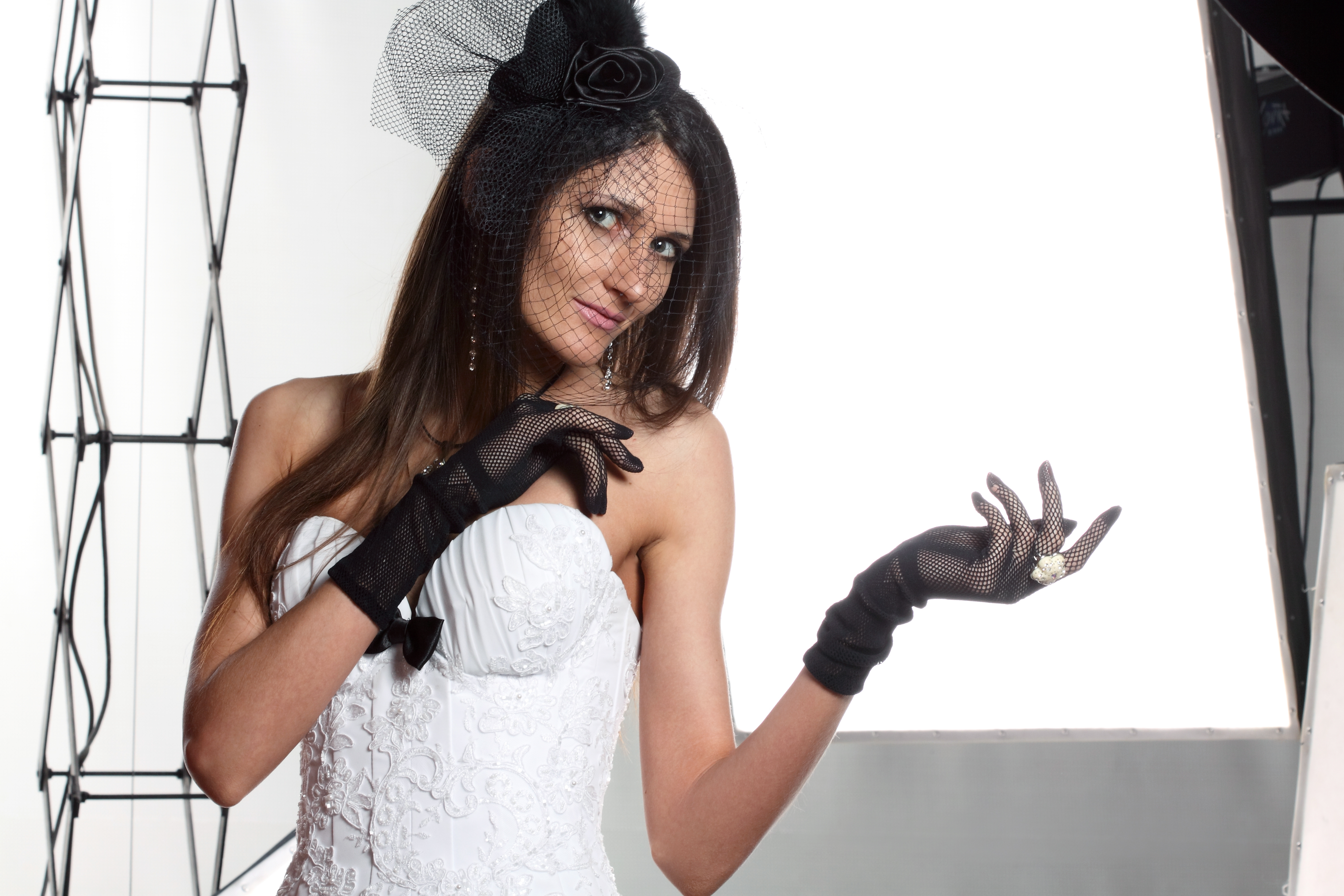
The Art of Skin Retouching: Achieving Natural Results Without the Filter Look
When I started my retouching journey, I made the same mistake many of us do: I smoothed skin until it looked like porcelain. It wasn’t until a client gently asked, “Is that really me?” that I realized the difference between enhancement and erasure.
Skin retouching is about revealing the best version of someone’s natural skin—not creating an impossible standard. I’m going to walk you through the techniques I’ve refined over years of working with clients who want to feel like themselves, just polished.
Understanding What We’re Actually Fixing
Before we touch our retouching tools, let’s be clear about what we’re solving for. Good skin retouching addresses:
- Blemishes and temporary imperfections (acne, breakouts, small scars)
- Under-eye circles and puffiness (subtle correction, not elimination)
- Uneven skin tone (redness, discoloration)
- Surface texture (while preserving natural pores and detail)
What we don’t do is remove character. Freckles, natural skin texture, and subtle lines tell someone’s story. We enhance, we don’t erase.
My Two-Layer Approach to Skin Retouching
I use a workflow that separates correction from enhancement, which gives us more control and helps avoid that plastic appearance.
Layer 1: Spot Healing Start with the Healing Brush Tool in Photoshop (or equivalent in your software). I set my brush to 20-30% opacity and work on a separate layer. Target individual blemishes with short, deliberate strokes. The key here is patience—multiple light passes beat one heavy stroke. This prevents the telltale blurred patch that screams “retouched.”
Layer 2: Tone and Texture Correction Create a new layer and use the Dodge and Burn technique to address larger areas of uneven tone. Set your brush to 5-15% exposure—we’re being subtle. Dodge (lighten) under the eyes and areas that need brightening. Burn (darken) to add definition where needed. This layer works with the skin’s natural structure rather than against it.
The Frequency Separation Game-Changer
Here’s where many of us level up: frequency separation. This technique splits your image into texture and tone layers, letting us fix color and smoothness separately.
- Duplicate your base layer twice
- Set the top layer to High Pass (Filter > Other > High Pass). Use a radius of 3-5 pixels
- Change the blend mode to Linear Light
- Set the second duplicate to Gaussian Blur (5-10 pixels)
- Change its blend mode to Color
Now you can work on texture with the high-pass layer and tone with the blur layer. I usually soften the blur layer to 40-60% opacity—this preserves important skin detail while smoothing tone.
The Detail We Must Preserve
This is crucial: don’t blur away pores entirely. Skin without pores looks synthetic. Instead, aim for refined pores. They should be visible but even. On a 300dpi portrait for print, I can see individual pores, and that’s exactly what we want—clear, organized, natural.
Final Check: The Half-and-Half Test
Before I consider a portrait finished, I always do this: toggle the visibility of my retouching layers on and off. I examine both versions side by side. The difference should be noticeable but not shocking. If people are amazed by how different it looks, I’ve gone too far.
The goal is for viewers to notice that someone looks great—not that they’ve been retouched. That’s when we know we’ve succeeded.
Retouching is a skill that improves with practice and intention. Start with these techniques on your next portrait, and I promise you’ll develop an instinct for what each image needs. We’re not creating fantasy versions of people; we’re polishing the real ones they already are.
Comments (7)
I've been looking for exactly this kind of tutorial. Perfect timing.
This is fantastic. I've been recommending this approach to my readers too.
Simple but effective. Sometimes that's all you need.
Been doing this wrong for years apparently. Thanks for the wake-up call.
Excellent tutorial. I'd add that from a lighting standpoint, this technique is incredibly versatile.
My workflow just got 10x faster. Not even kidding.
Couldn't agree more. I've seen this make a huge difference in business work specifically.
Leave a Comment