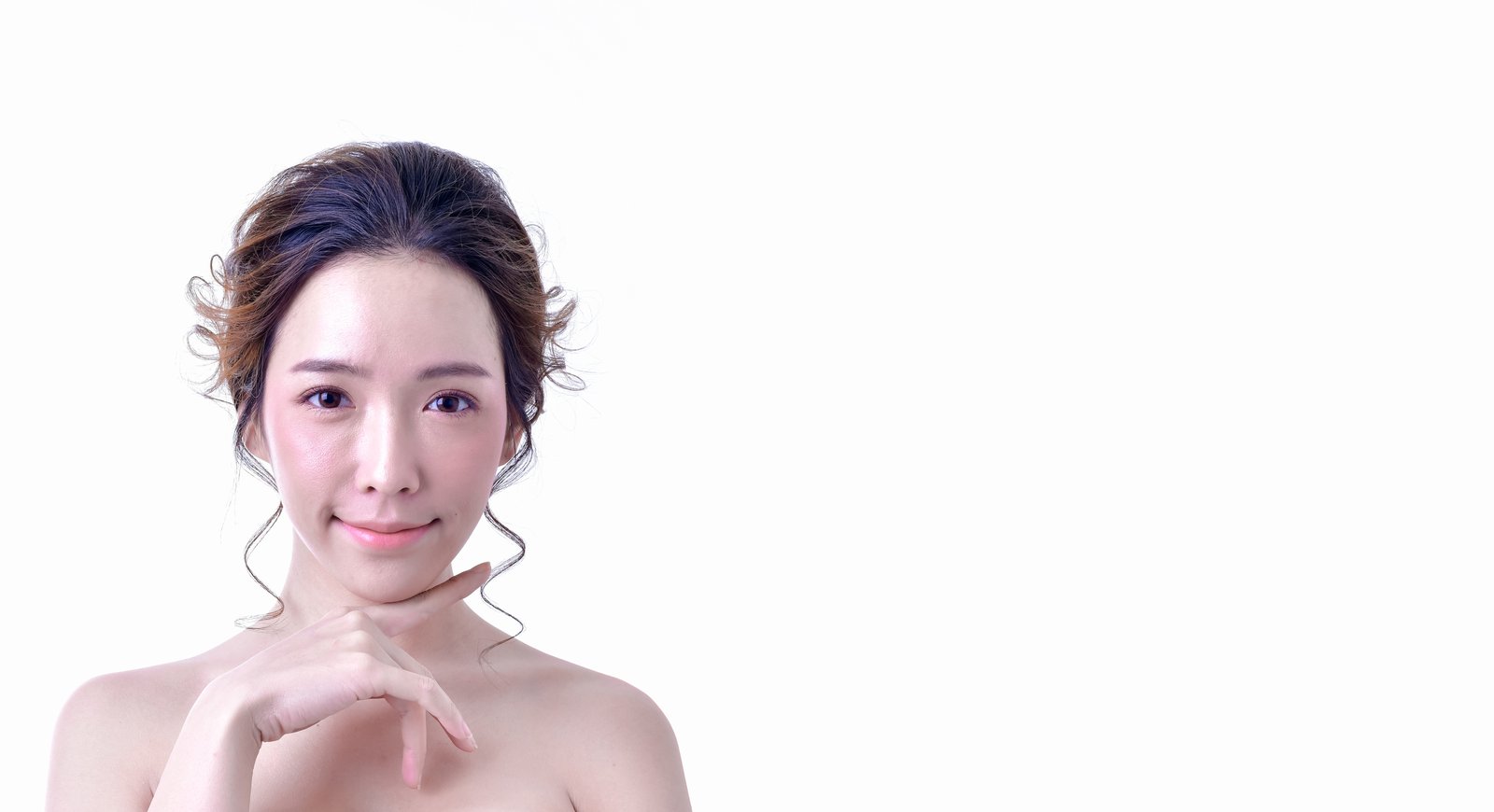
The Five Minutes Before You Touch the Skin: Why Portrait Cleanup Changes Everything
A few years back, a client sent me a one-line email that stopped me cold: “These look a little plastic.” I had spent three hours on that set of headshots. Smooth skin, bright eyes, clean teeth. I thought I’d done everything right. What I hadn’t done was the boring part first, the part that makes everything else land correctly. I’d gone straight for the glory work and skipped the foundation entirely.
Portrait cleanup is unglamorous. It doesn’t have a dramatic before-and-after. But it is the difference between a retouch that reads as real and one that makes your subject look like they were rendered in a video game. Let me walk you through the way I approach it now, after learning this lesson the humbling way.
What “Cleanup” Actually Means (and Why It’s Not the Same as Retouching)
Most people conflate cleanup with retouching, but they’re genuinely different phases. Retouching is corrective and creative: smoothing texture, balancing tone, shaping light. Cleanup is structural. It’s removing anything that shouldn’t be there at all, before you do anything else.
This includes flyaway hairs crossing the face, clothing lint or wrinkles that distract from the subject, background smudges, catchlight artifacts, stray eyelashes on the cheek, and sensor dust if you’re working with RAW files that were shot against a soft or light background. These elements are not texture problems. They are clutter problems, and no amount of frequency separation will fix clutter.
The reason this sequencing matters technically is that most retouching tools sample surrounding pixel information. When you heal or clone against a dirty background, or use Liquify near a flyaway hair, you’re building your corrections on unstable data. You get compounding errors. Clean the canvas first, then work on it.
The Cleanup Pass: A Repeatable Order of Operations
I run every portrait through the same sequence before I open Liquify or touch the frequency separation layers. Here’s exactly how I do it in Photoshop.
Duplicate your background layer and name it “cleanup.” Work non-destructively from the start. Set your Clone Stamp tool to Current Layer, Aligned mode off, and drop the opacity to 90 percent. I keep hardness at 0 for everything except hard-edged artifacts like sensor dust, where I’ll bring it up to 20 or 30 percent.
Start with the background. Use the Clone Stamp or the Healing Brush (I prefer Clone Stamp for anything near an edge) to eliminate distractions behind the subject. Then move to clothing. Lint comes off fast with a small, soft Healing Brush at 100 percent. Wrinkles take more patience: sample parallel fabric grain, work in small strokes, and resist the urge to make one sweeping correction.
For flyaways, zoom to 100 percent minimum. I use a 3-to-5 pixel Clone Stamp, sample clean sky or skin from an adjacent area, and follow the hair’s directional path with short, overlapping strokes. This takes longer than people expect. On a windy outdoor shot, I might spend 20 minutes just on hair before I ever look at the skin.
Finally, check the catchlights. Sometimes a light source or a window reflection in the eyes is distractingly asymmetrical or shaped like an octagon from a cheap modifier. I clean these up with the Clone Stamp sampling from the iris itself, keeping any correction subtle. A 30 to 40 percent opacity pass is usually enough.
The Catchlight Detail That Most Tutorials Skip
Catchlights deserve their own mention because they’re small but neurologically significant. Human eyes read other eyes instinctively, and a viewer’s gaze will snap to anything odd in that region of the frame. A Westcott Rapid Box leaves a beautiful rectangular catchlight. A ring flash leaves a circle. A bare strobe in the wrong position leaves a small hot dot up near the eyelid that looks clinical and strange.
My practice is to keep whatever catchlight the photographer captured if it reads naturally, and only clean it if it’s distracting or asymmetrical between the two eyes. Matching the size and position of catchlights between eyes takes maybe two minutes and makes the whole portrait feel more coherent. It’s not glamorous work. It matters enormously.
Sensor Dust and the Soft Background Problem
Sensor dust is almost invisible on a busy background. On a seamless backdrop, a gradient sky, or a soft bokeh field, it shows up as a soft grey ellipse, usually in the same position across every frame in a shoot. If you’re cleaning up a full portrait session rather than a single image, check your first image carefully and note the dust position. You’ll likely find it in the same spot across dozens of frames.
For a session of 20 selects, I’ll batch-remove sensor dust in Lightroom first using the Spot Removal tool with Visualize Spots turned on (keyboard shortcut: T). Set the feather slider high, around 80 to 100, for seamless blending on soft backgrounds. This takes about four minutes in Lightroom and saves having to clone the same spot in Photoshop across every file individually. That’s a meaningful time savings when you’re billing by the hour or working against a 48-hour turnaround.
Why Clean First Means Better Retouching Later
When I finally started running a real cleanup pass before touching anything else, I noticed something I didn’t expect: my retouching got faster. Not marginally faster. Measurably faster, sometimes cutting 20 to 30 minutes off a complex beauty edit. Clean pixel data means better Healing Brush sampling, smoother frequency separation results, and Liquify adjustments that don’t accidentally warp stray hairs into the skin. The cleanup was paying back its own time investment.
That client who told me my edits looked plastic was not wrong. I had been polishing something that was already cluttered underneath, and the result was a surface sheen over unresolved problems. The polish made it worse.
Clean the frame before you improve it. That single discipline, applied consistently, is what separates work that holds up under scrutiny from work that only looks finished at first glance.
Comments
Leave a Comment