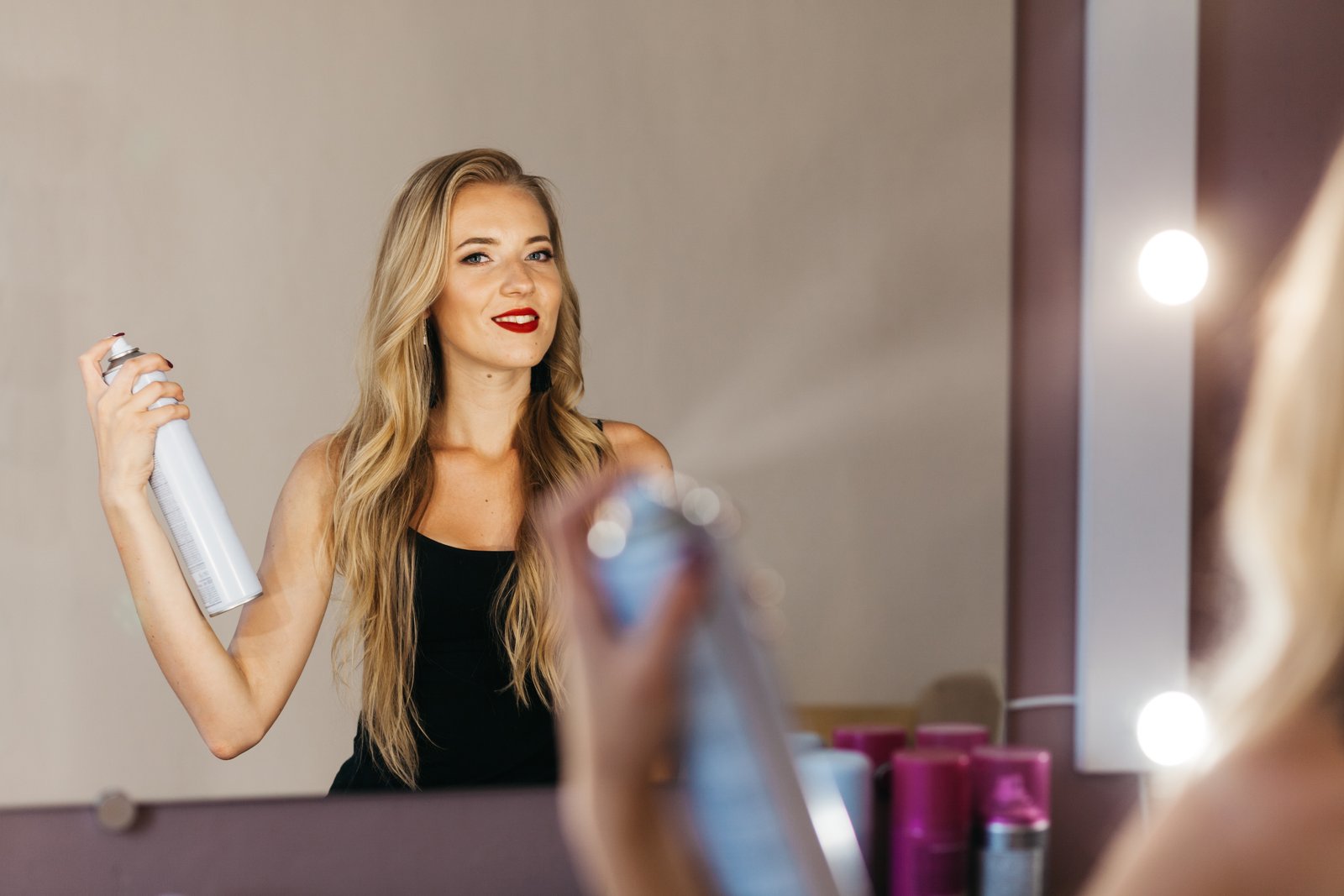
A few years back, I delivered a set of headshots to a corporate client and got a reply I still think about. She loved everything except one thing: her hair looked “painted on.” I zoomed into my own file and felt my stomach drop. She was right. The edges were too smooth, too uniform, the individual strands completely gone. I had been so focused on removing flyaways that I had accidentally removed the thing that makes hair look like hair.
That single email sent me down a months-long obsession with hair retouching that completely changed how I approach every portrait I touch.
Why Hair Is the Hardest Thing to Retouch
Skin is forgiving. You can push it, smooth it, and as long as you preserve texture, it reads as skin. Hair is different. It is made of thousands of individual strands, each catching light at a slightly different angle, and the human eye is extraordinarily good at detecting when that complexity has been flattened.
The main culprit is how we tend to reach for broad tools: the Healing Brush, the Clone Stamp, sometimes even a plain soft-edged eraser, to deal with stray strands or patchy sections. These tools average pixels across wide areas. They work beautifully on skin but on hair they destroy the very detail that reads as authentic. The moment you lose edge variance and strand separation, the hair starts looking like a helmet or a wig.
There is also a luminosity problem. Hair has specular highlights that shift dramatically depending on strand direction. When we paint or blend over those areas without accounting for luminosity, we end up with flat, tonally dead patches that catch the eye immediately.
The Two-Pass Approach: Removal First, Reconstruction Second
I now work every hair retouch in two distinct passes, and separating them has made my work cleaner and faster.
In the first pass, I deal only with major distractions: hard flyaways crossing the face or background, large frizz clusters, and anything that would pull focus in a thumbnail. For this I use the Healing Brush at 100% hardness, sample set to “Current and Below,” and I work on a blank layer above a merged composite. Hardness at 100% sounds counterintuitive but it preserves strand edges far better than a soft brush. I keep my brush size just slightly larger than the strand I’m removing, and I sample from nearby hair going in the same direction. This entire pass usually takes three to five minutes on a standard portrait.
The second pass is about reconstruction: softening the hairline without killing it, evening out density in thin areas, and rebuilding any sections where previous retouching went too far. Here I use a combination of the Smudge tool at 12% strength and a custom scatter brush set to 1-3px with spacing at 150% and a scatter value of 80%. The Smudge tool at low strength is underused in hair work. It lets you pull existing edge strands outward without painting new information, which means the result still reads as photographic. The scatter brush, when sampled from the hair’s actual color and set to a very low flow around 8%, lets you suggest individual strands in areas that feel too dense or too flat.
Tackling Flyaways Without Destroying the Hairline
The single worst habit I see in submitted work from my workshops is heavy-handed flyaway removal along the hairline. People eliminate every wisp and then wonder why the portrait looks off. A completely clean hairline is not natural. No one’s hair ends in a perfectly sharp line.
When a flyaway is close to the hairline itself, I usually don’t remove it entirely. Instead, I reduce it. I’ll create a new layer, sample the background tone, and paint over roughly 60-70% of the strand at a very low opacity (15-20%), leaving the root end and a faint trace of the tip. The strand is quieter but still there, which keeps the edge organic. This takes about 30 extra seconds per strand and completely changes how the final image reads at full size.
For flyaways crossing a complex background, like foliage or a textured wall, I rely on the Pen tool to create a precise path along the strand, stroke it with a sampled background color, and then drop the layer opacity until the strand is gone but the background variation underneath is preserved. It is slower than the Healing Brush but it protects the background detail that would otherwise get blended into mush.
When to Leave It Alone
Early in my beauty work, I had a client whose hair had a soft, lived-in texture that I instinctively started cleaning up. Loose pieces, a slight wave that went its own direction, some variation at the crown. Halfway through I stopped and looked at the original again. That texture was exactly what made her look like herself. The “problem” I was solving wasn’t a problem at all.
The client had booked the shoot for a brand that specifically wanted that approachable, unpolished energy. If I had delivered hair that looked perfect, it would have been wrong for the job. I saved a version, showed both in my delivery folder, and she chose the one I had almost over-edited. It still makes me nervous to think about.
The One Setting Most People Never Check
Before any hair retouching, I check my document’s bit depth. If you are working in 8-bit, switch to 16-bit via Image > Mode > 16 Bits/Channel before you start. Hair transitions, especially fine strands against bright or gradient backgrounds, are where banding shows up first, and once it bakes into a flattened layer, it is genuinely difficult to remove. The file gets larger, yes, but the quality difference in fine detail is not subtle.
Hair retouching done well is mostly restraint: restraint with your tools, restraint with how much you remove, and restraint in accepting that a little irregularity is not a flaw but the thing that makes a portrait feel like a photograph of a person rather than a render of one.
Comments
Leave a Comment