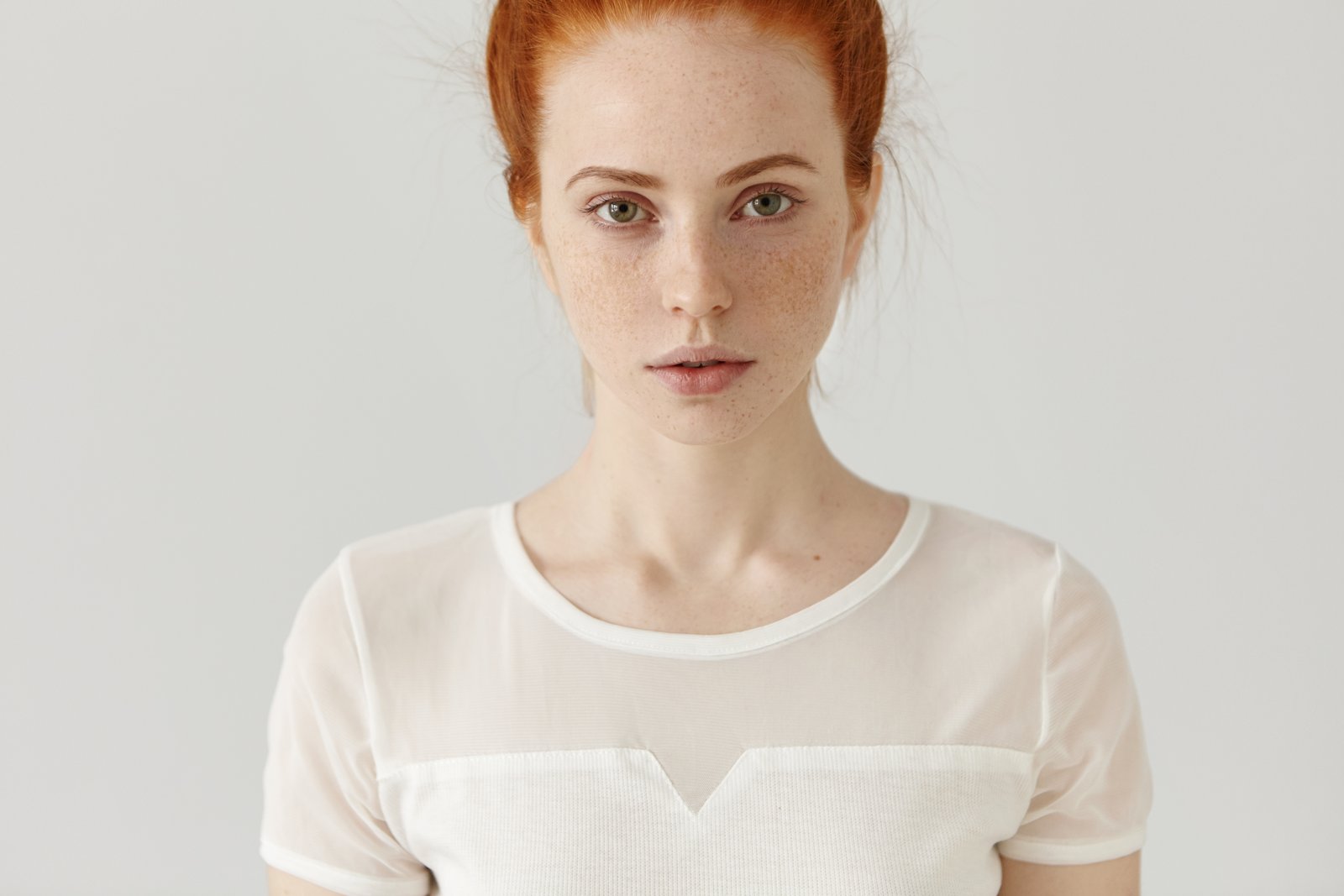
A few years into my retouching work, a client sent me a message I still think about. She’d hired me to retouch a batch of corporate headshots, and after I delivered the files, she wrote back: “These are great, but… everyone kind of looks the same? Like they’ve been smoothed over?” She wasn’t wrong. I’d been so focused on removing every shadow and blemish that I’d accidentally erased what made each person look like themselves.
That note recalibrated everything about how I approach headshots.
What “Over-Edited” Actually Means Technically
When people say a headshot looks plastic or fake, they’re usually responding to one specific problem: the separation between color and texture has been destroyed. Skin has two distinct visual layers working together. The first is tone, meaning the underlying colors, the warm flush across the cheeks, the cooler shadows near the jaw. The second is texture, meaning the actual surface detail, pores, fine lines, the subtle roughness that tells your eye “this is real human skin.”
Most beginner retouchers, and honestly most intermediate ones, reach for a blur tool or a healing brush and drag it across the face. That approach fixes both layers at once. The color evens out, which looks great. But the texture disappears too, and that’s what reads as artificial. The face starts to look like it was rendered in a video game from 2009.
Frequency separation is the technique that lets us work on those two layers independently. It’s not new, but it’s still the most important thing I teach in my workshops, because understanding why it works changes how you use it.
Setting Up Frequency Separation the Right Way
Here’s how I set it up in Photoshop, and the settings matter more than people realize.
Duplicate your background layer twice. Name the bottom copy “Color” and the top copy “Texture.” On the Color layer, go to Filter, Blur, Gaussian Blur. For a headshot shot at a standard portrait distance, I use a radius between 6 and 8 pixels on a file that’s roughly 3000 pixels on the long edge. If you’re working on a high-res file from a medium format camera, push that to 10 to 12 pixels. The goal is to blur until the skin looks like a soft watercolor wash with no visible detail.
Now click on the Texture layer. Go to Image, Apply Image. Set the layer to “Color” (your blurred layer), set the blending mode to “Subtract,” scale to 2, and offset to 128. Click OK. Then change the blend mode of your Texture layer to Linear Light.
You now have two layers you can paint on separately. Work on Color to fix uneven tone and redness. Work on Texture to address surface detail without touching the underlying color. This is the exact approach I use on every headshot that comes through my queue, and it’s what I named my saved action after “Eternal Sunshine” because it feels like you’re selectively erasing just the right parts.
Healing on the Color Layer Without Losing Realism
The color layer is where most of the heavy lifting happens in a corporate headshot. I use the Clone Stamp tool set to around 20 to 30% opacity and sample areas of similar tone, pulling color from the cheek to soften redness near the nose, or borrowing skin tone from the forehead to neutralize a shadow under the chin that reads too dark on screen.
One thing I watch obsessively: I never flatten or smooth more than about 60 to 70% of the variation I see. Real skin has variation. If you eliminate it entirely, you get that underwater, slightly glowing look that clients can’t always name but immediately distrust. I aim for skin that looks like the person had a good night’s sleep and good lighting, not like they’ve been processed.
For blemishes and temporary spots, I switch to the Healing Brush on the Color layer. I keep hardness at 0%, opacity at 100%, and I click, I don’t drag. Dragging smears the color sample and creates muddy patches.
How to Handle Eyes, Teeth, and Catchlights in Under Five Minutes
Eyes and teeth are where a headshot either sells or fails. For the eyes, I use Curves adjustment layers with the blend mode set to Screen for brightening, masked tightly to just the whites using a black mask and a soft white brush at 40% opacity. I bring the whites up by maybe 15 to 20 points on the curve, not more. Blown-out whites look theatrical.
For catchlights that are weak or inconsistently shaped, I’ll paint a small white dot on a new layer at about 60% opacity, then use a 1 to 2 pixel soft eraser to clean the edges. It takes about 90 seconds and reads as completely natural.
Teeth get a Hue/Saturation layer, desaturating the yellows by about minus 15 to minus 25 depending on the original warmth, and a very subtle Curves lift. Clip both adjustments to a masked group so you stay inside the lip line.
The Thing I Wish Someone Had Told Me Earlier
I still have my first professional retouching attempt saved in a folder on an old hard drive. I open it maybe once a year. The skin looks like fondant. The eyes are so brightened they look radioactive. The person in the photo, who was a perfectly lovely human being, looks like a wax figure of themselves.
What that image taught me, eventually, is that retouching isn’t about removal. It’s about reduction. You’re not eliminating what’s there, you’re turning down the volume on whatever is distracting from the person’s actual face. A good headshot edit should make someone look at the image and think “she looks great,” not “that’s been retouched.”
The best headshot edit is the one where nobody notices you were there at all.
Comments
Leave a Comment