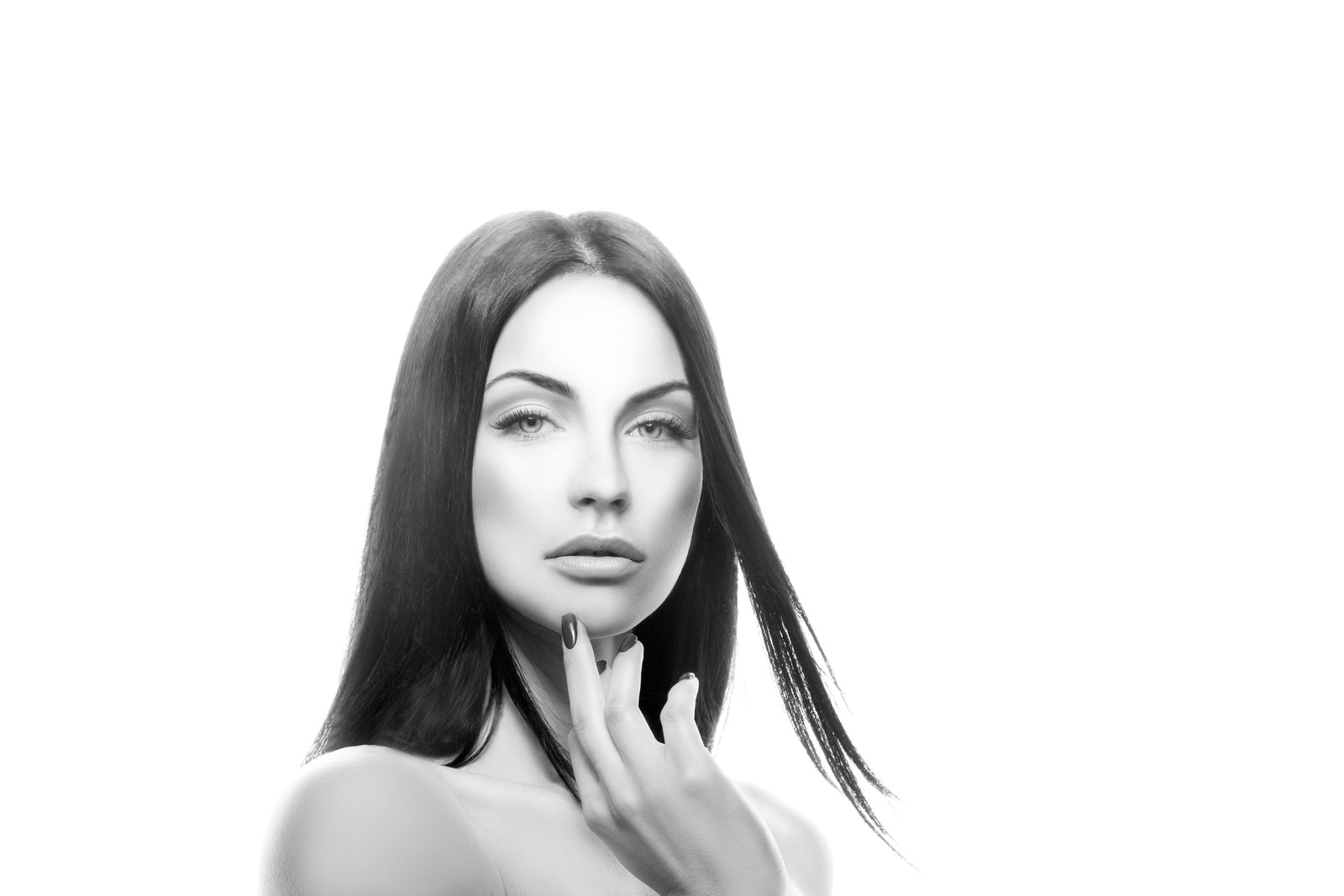
The first headshot I ever retouched that a client actually complained about wasn’t overexposed or poorly cropped. It was technically clean. Sharp eyes, even skin tone, good contrast. The client called me and said, very politely, “I just look kind of… plastic?” I had smoothed her skin so aggressively that the natural texture was gone, and what was left was something between a wax figure and a LinkedIn filter. I kept that file. Still have it, actually, as a reminder that heavy-handed editing doesn’t mean better editing.
Headshots are a specific beast. They’re not beauty campaigns where heightened, polished skin reads as aspirational. They’re not editorial spreads where abstraction works in your favor. A headshot has one job: to make a real person look like their best real self. The moment it tips into obvious retouching, it fails, because the whole point is that someone’s going to show up in a meeting or audition looking like that photo.
What’s Actually Happening When Skin Looks Fake
When we over-smooth a face, we’re collapsing two things that need to stay separate: color information and texture information. Skin has uneven pigmentation, redness, shadow variation. It also has pores, fine lines, and surface texture. These are different layers of information sitting on top of each other.
When you use a healing brush or a blur-based smoothing technique without separating those two layers, you fix the redness but you also destroy the pores. The result is that the skin looks lit from within rather than lit from outside, which is the uncanny valley of portrait retouching. Your brain doesn’t consciously register “no texture,” but it absolutely knows something is off.
This is why frequency separation changed everything for me when I first properly learned it. The technique splits your image into a low-frequency layer (color and tone) and a high-frequency layer (fine detail and texture). You paint out splotchiness on the low layer without touching the texture. The skin looks even. It still looks like skin.
The Frequency Separation Setup That Actually Works
In Photoshop, here’s the setup I use on every headshot. Flatten your retouch to a merged stamp layer (Ctrl+Alt+Shift+E). Duplicate it twice. Name the bottom copy “Low Frequency” and the top “High Frequency.”
On the Low Frequency layer, go to Filter, Blur, Gaussian Blur. For a portrait shot at 200-300 DPI, I use a radius between 4 and 6 pixels. You want the skin tones to blend together while still being able to make out the face.
On the High Frequency layer, go to Image, Apply Image. Set Layer to your Low Frequency layer, Blending to Subtract, Scale to 2, Offset to 128. Change the High Frequency layer’s blend mode to Linear Light. Now your two layers add back together to show the original image, but they’re editable independently.
Work on the Low Frequency layer with a low-flow brush, maybe 10-15%, soft edge, set to Darken or Lighten depending on what you’re correcting. You’re painting color, not texture. Keep your sample point close to your target area so you’re matching real skin tones from the same face.
The Headshot Retouching Sequence I Follow Every Time
Frequency separation handles the skin, but headshot editing has other moving parts. Here’s the sequence I run, roughly in this order:
First, exposure and color correction globally in Camera Raw or Lightroom before I even open Photoshop. I’m looking at the histogram and the whites of the eyes as my reference points. If the whites are blowing out, everything is too bright.
Second, liquify, but conservatively. For headshots I might soften a jawline asymmetry or relax a tension pattern around the mouth, but I’m moving sliders 2-4 pixels at most. If I’m nudging more than that, I’m solving a lighting problem with the wrong tool.
Third, frequency separation for the skin, as above.
Fourth, eyes and teeth, which I handle on separate layers. For eyes I use a Curves adjustment layer masked to the iris, lifting the midtones slightly and adding a touch of contrast. For teeth I use Hue/Saturation, desaturating yellows by about minus 15 to 20, never more. Real teeth have warmth. Fully desaturated teeth look like dentures.
Fifth, a final dodge and burn pass on a 50% gray layer set to Overlay. This is where I sculpt the light a little, drawing out cheekbone structure or softening a harsh shadow under the chin. I call this layer “Chinatown” because naming my Photoshop actions after movies is apparently just something I do now.
When to Stop: The Mirror Test
The single question I ask before I flatten and export is: does this person look like they could walk in and look like this photo? Not perfect. Not filtered. Just themselves, on a good day, well-rested.
If the answer is no, I’ve gone too far somewhere. Usually it’s the skin smoothing, occasionally it’s the eye brightening. I’ll undo the last two or three steps on that specific layer and look again.
One thing I’ve noticed after years of doing this: the edits that make clients happiest are almost always the quietest ones. A small color correction on ruddy cheeks. A slight lift on under-eye shadow. The removal of one distracting blemish. Clients don’t say “wow, you really blurred my pores.” They say “I actually look like me, but I look good.”
The File Delivery Piece Most Retouchers Overlook
Deliver the final headshot as a flattened TIFF at full resolution for the client’s archive, and a JPEG at 2000 pixels on the long side, sRGB, for web and LinkedIn use. If you send a CMYK TIFF to someone who’s going to upload it to a casting website, the colors will shift and they’ll think you got the skin tone wrong.
I include a simple delivery note in every email: “TIFF is for print, JPEG is for digital. If you need a different size or format, just ask.” It takes 10 seconds to type and it eliminates at least one follow-up email per client.
The whole point of a good headshot retouch is that nobody should be able to tell you did it. If the client’s first word is “wow,” you probably got it right. If their first word is “wait,” go back to the mirror test.
Comments (9)
Just subscribed. If the rest of your content is this good, I'm in.
Would love to see a follow-up going deeper into this topic.
Quality content like this is rare. Keep it up.
Excellent tutorial. I'd add that from a color grading standpoint, this technique is incredibly versatile.
This is exactly what I needed today. Been struggling with this for weeks.
This is going in my reference folder. Incredibly useful.
I've been looking for exactly this kind of tutorial. Perfect timing.
This is exactly what I needed today. Been struggling with this for weeks.
This is exactly what I needed today. Been struggling with this for weeks.
Leave a Comment