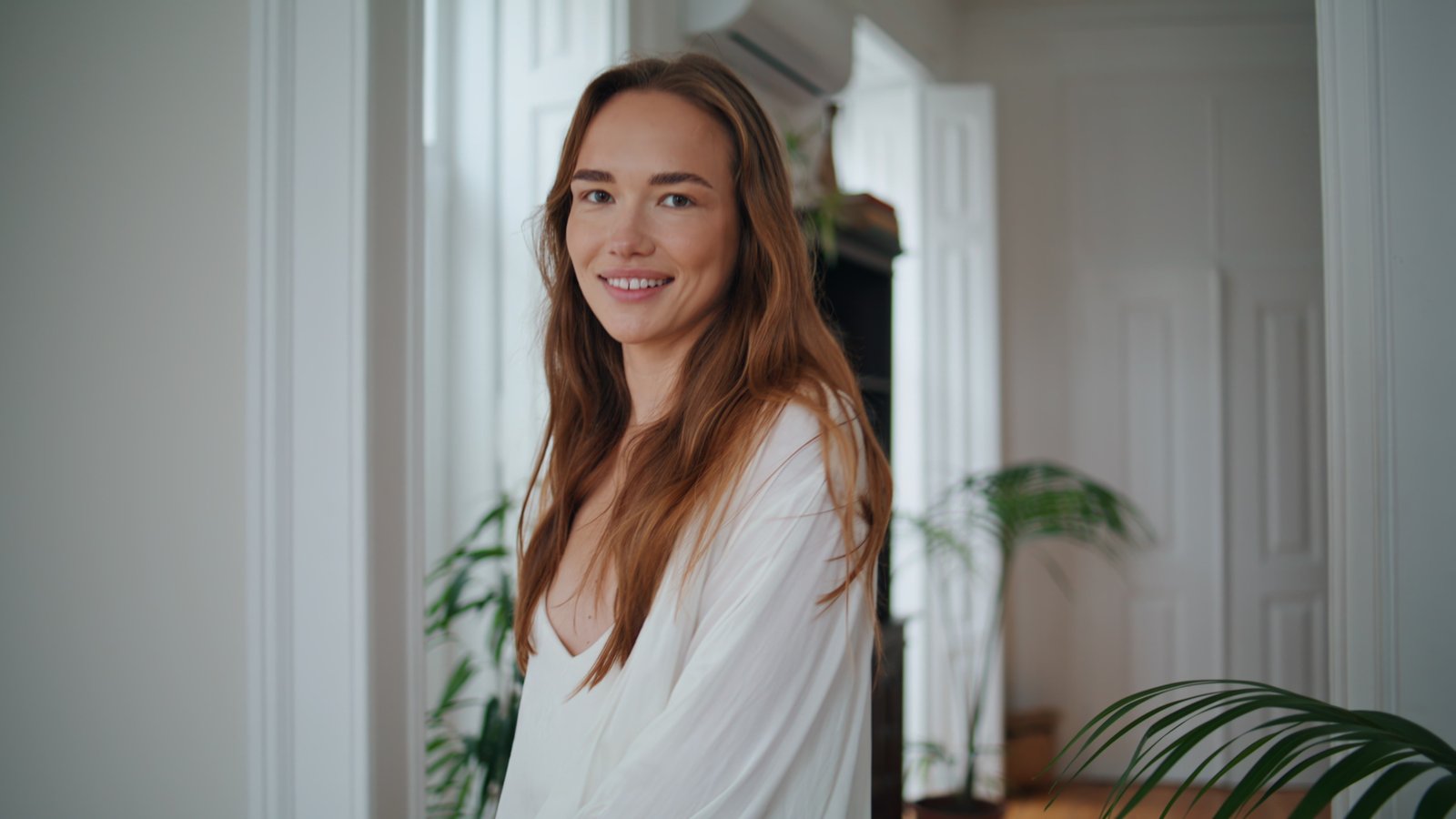
The first time a client told me my retouching looked “plastic,” I wanted to close my laptop and never open Photoshop again. I had smoothed the skin beautifully, removed every blemish, cleaned up the flyaways. The image looked, to my eye, finished. To her eye, it looked like a wax figure. What I had done, without realizing it, was remove not just the flaws but the light. And skin without light is just a texture mapped onto a mannequin.
That lesson pushed me toward dodge and burn harder than any tutorial ever could.
What Dodge and Burn Is Actually Doing to Your Image
Dodge and burn is not a healing tool. It is not correction. It is the digital version of what a photographer does when they place a reflector under a subject’s chin or feather a softbox to wrap light around a cheekbone. You are painting light and shadow back onto the image in a way that makes the face read as three-dimensional.
When you photograph someone, the camera compresses a full range of light into a flat file. Shadows that your eye perceived as subtle become muddy. Highlights that felt luminous go a little dead. The skin loses the micro-contrast that tells the brain “this is a real surface.” Dodge and burn restores that micro-contrast deliberately, stroke by stroke.
There are two levels to the work. Macro dodge and burn shapes the big forms: the under-eye area, the shadow under the nose, the highlight down the bridge. Micro dodge and burn addresses smaller tonal inconsistencies, the uneven patches, the slight discoloration around a pore, the way one cheek catches slightly more light than the other. Both matter. Most beginners only do one.
Setting Up the Layers the Right Way
Skip the actual Dodge and Burn tools in Photoshop’s toolbar. They destroy pixels and give you almost no control. Instead, we work on two soft-light curve layers.
Create a new layer, fill it with 50% gray (Edit, Fill, 50% Gray), and set the blend mode to Soft Light. Do this twice: one layer labeled “Dodge,” one labeled “Burn.” I name mine after movies, so right now they are “Oppenheimer” and “Barbie,” which genuinely helps me remember which direction I am painting. On the Dodge layer, we paint with a soft white brush. On the Burn layer, we paint with a soft black brush.
Your brush settings matter more than most people realize. Start with Opacity at 3 to 5 percent. Flow at 100 percent. Hardness at 0. A large brush, 300 to 500 pixels for a standard retouching file, for macro work. Drop to 50 to 100 pixels for micro work. The low opacity is not timidity. It is precision. You build up effect gradually so that you never overshoot.
Work on a file that is at least 3000 pixels on the long edge. If you dodge and burn on a small file and then scale up, every stroke becomes visible.
The Macro Pass: Shaping the Face
Look at your image and identify where the light source is coming from. Everything on that side of the face should be slightly brighter than it currently is. Everything turning away from the light should be slightly darker. We are not inventing new light, we are reinforcing the light that already exists in the photograph.
On the Dodge layer, take that large soft brush at 3 percent opacity and make two to three slow passes over the highlight areas: the center of the forehead, the tops of the cheekbones, the bridge and tip of the nose, the cupid’s bow, the center of the chin. On the Burn layer, deepen the temples slightly, the sides of the nose, the area just below the cheekbones, and the hollows under the lower lip.
Toggle the layers on and off constantly. If you can see a clear, obvious change each time you toggle, you have gone too far.
The Micro Pass: Evening Out Skin Tone
This is where the real time goes. Switch to your smaller brush and zoom in to 100 percent. You are looking for any area of skin that is either lighter or darker than the skin immediately surrounding it. A small reddish patch gets a gentle pass on the Burn layer with a black brush, which darkens it into closer alignment with the surrounding skin. A slightly gray shadow under an eye gets a careful pass on the Dodge layer.
The goal is not to eliminate variation entirely. Skin has variation. The goal is to reduce the variation that reads as damage or inconsistency while preserving the variation that reads as texture and life.
This pass can take 20 to 45 minutes on a hero image for a beauty brand. It is slow. It is meditative, honestly. I drink an embarrassing amount of green tea during this part of the process. But it is what separates retouching that feels like a photograph from retouching that feels like an illustration.
Checking Your Work Without Fooling Yourself
Create a Curves adjustment layer above everything else, boost the midtones significantly, and look at your skin. Any areas you missed will be immediately obvious. Patches that still read uneven will practically glow. Fix them, then delete the check layer.
Also flip your canvas horizontally. Your eye habituates to an image quickly, and a horizontal flip makes it read as new. Errors you completely stopped seeing will suddenly be glaring.
Zoom out to the final output size before you call the retouch done. I resize my window to match how the image will actually be seen, whether that is a phone screen for Instagram or a 16 by 20 print, and evaluate it from that perspective. A lot of what looks rough at 100 percent is invisible at output size. A lot of what looks fine at 100 percent reads as too heavy once it is scaled down.
The single most important thing I can tell you about dodge and burn is that the tool is not the point. Understanding light is the point. Once you know where light should fall on a face, the brush is just how you put it there.
Comments (7)
Just subscribed. If the rest of your content is this good, I'm in.
Never thought of approaching it this way. Really creative.
Couldn't agree more. I've seen this make a huge difference in photoshop work specifically.
Tried this technique this morning. Game changer for real.
Bookmarked. Coming back to this one for sure.
Quality content like this is rare. Keep it up.
Couldn't agree more. I've seen this make a huge difference in workflows work specifically.
Leave a Comment