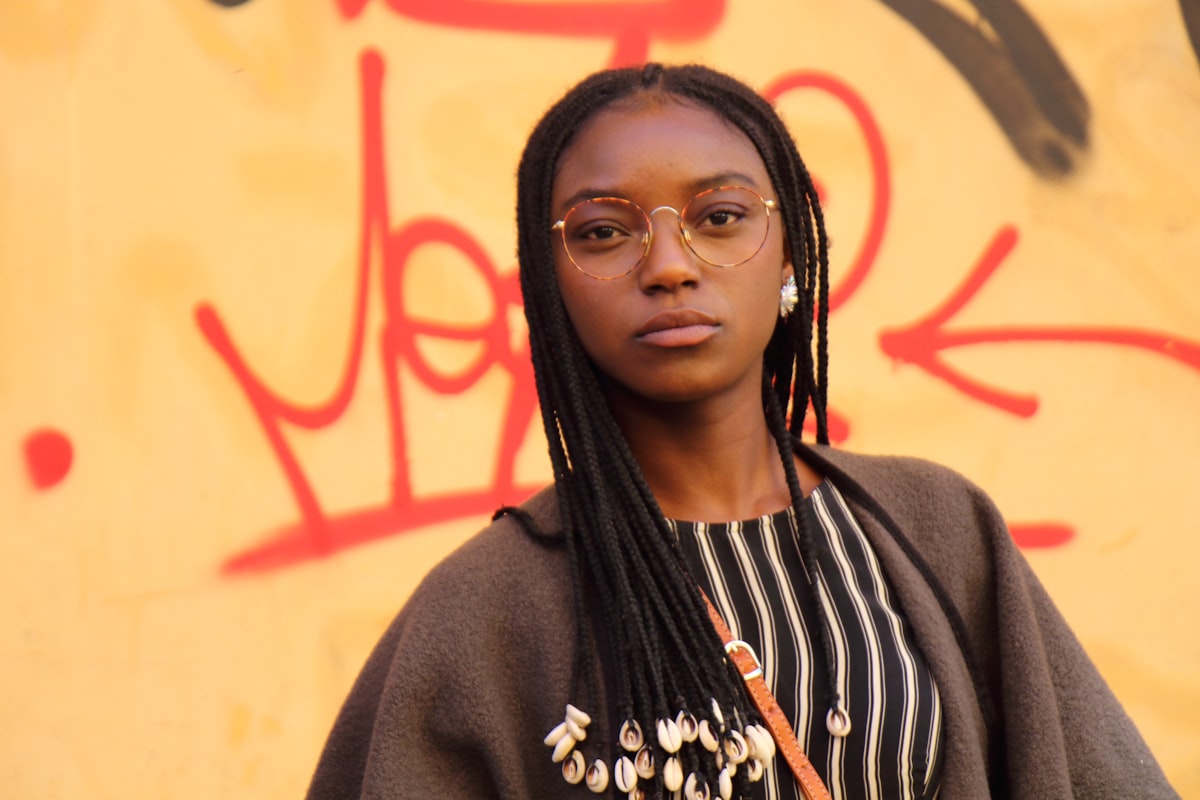
Dark circles under the eyes are one of the most common retouching requests. Almost everyone has them to some degree, and studio lighting tends to make them worse. The trick is reducing them without eliminating them entirely — because removing all shadow from under the eyes creates an uncanny, flat look.
Here’s the approach I use on every portrait session.
Why You Shouldn’t Just Clone Them Away
The first instinct most beginners have is to grab the Clone Stamp and paint cheek skin over the dark area. This destroys the natural contour of the face. The under-eye area has a subtle depression, and some shadow there is anatomically correct. Remove it completely and the face looks like a mannequin.
Instead, we want to reduce the darkness and color shift while preserving the natural shape.
Method 1: Curves with a Luminosity Mask
This is my go-to method for subtle corrections.
- Create a new Curves adjustment layer
- In the Curves dialog, click on the area under the eye to place a control point
- Lift that point slightly to brighten the shadows — don’t go crazy, a small move makes a big difference
- Invert the layer mask to black (Ctrl/Cmd + I)
- Paint with a soft white brush at 30-40% opacity over the dark circles
The advantage here is that you’re only affecting luminosity. The skin texture stays completely intact because you haven’t touched the actual pixel data.
Method 2: Color Correction with a Blank Layer
Sometimes the issue isn’t just darkness — it’s a purple or blue color cast.
- Create a new blank layer set to Color blend mode
- Sample the skin color just outside the dark circle area (Alt/Option + click)
- Paint over the discolored area with a soft brush at 15-20% opacity
- Build up gradually with multiple strokes
The Color blend mode replaces only the hue and saturation of the pixels below, leaving luminosity untouched. This neutralizes the purple cast without flattening the area.
Method 3: Frequency Separation for Severe Cases
For deep, textured dark circles (common in editorial and fashion work), combine both approaches using frequency separation.
- Set up your frequency separation layers as usual — Color layer below, Texture layer above
- On the Color layer, use the Mixer Brush to blend the transition between the dark area and surrounding skin
- On the Texture layer, use the Clone Stamp at 100% opacity to address any rough texture, sampling from nearby skin
This gives you independent control over color and texture, which is essential when the dark circles have both a color problem and a texture problem.
How Much Is Too Much?
My rule of thumb: reduce dark circles by about 50-70%. If the person had noticeable circles, they should still have slight ones in the retouched image. This keeps the portrait looking like the actual person rather than an idealized version.
Toggle your corrections on and off frequently. If the before/after looks dramatic, you’ve probably gone too far. The best retouching is the kind nobody notices.
Quick Tip: Check Your Work in Black and White
Create a temporary Black & White adjustment layer on top of everything. This strips away color distractions and lets you evaluate whether the tonal transition under the eyes looks natural. If it looks smooth and believable in black and white, it’ll look great in color.
Comments (3)
The tip about adjusting the opacity gradually was the game-changer for me. Never would have thought of that.
Tried three different tutorials on this before finding yours. This one actually makes sense.
I'm a beginner and this was easy to follow. More articles for beginners please!
Leave a Comment