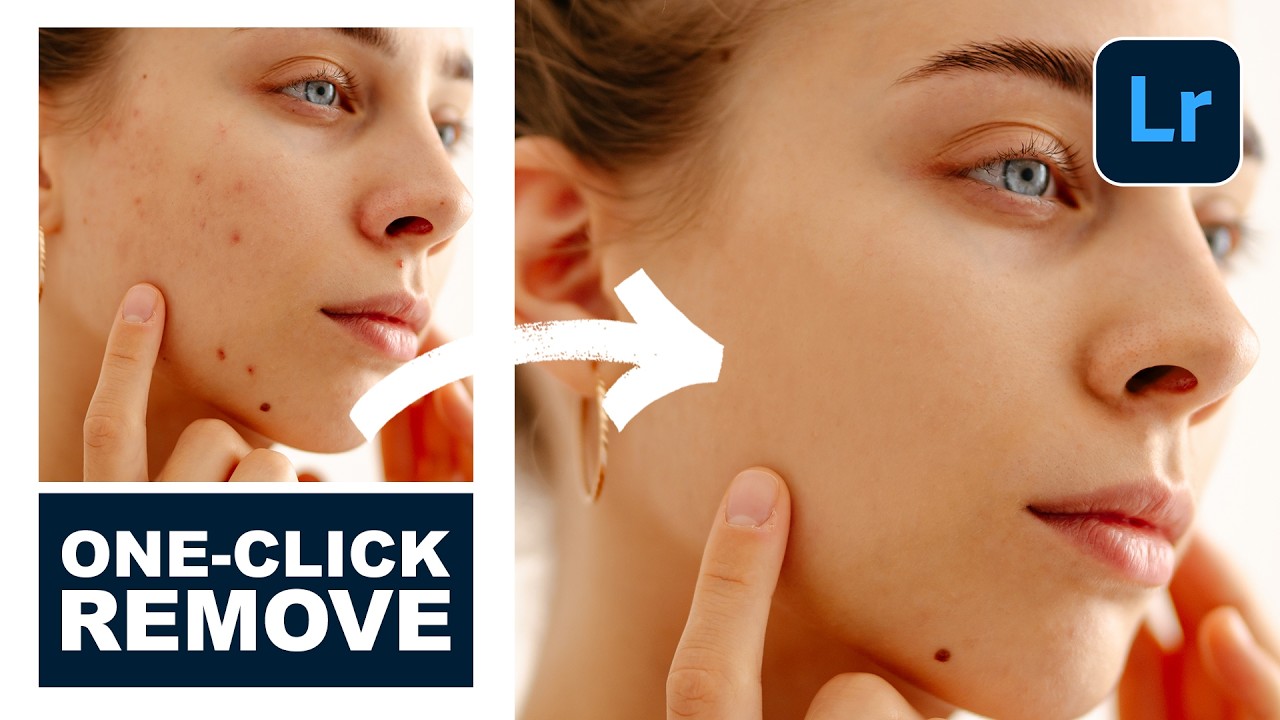
I’ve been following the rapid evolution of AI-powered editing tools, and I have to say—Lightroom Mobile’s new Blemishes tool is genuinely impressive. In this excellent tutorial, Aaron Nace (PHLEARN) shows us how to leverage this intelligent feature to achieve professional-quality skin retouching right from our phones. Let me break down exactly how this works and share some insights I’ve picked up from testing it myself.
What Makes This Tool Different?
Before we dive into the steps, I want to clarify why I’m excited about this feature. The new Blemishes tool isn’t just another slider—it’s an AI-powered Quick Action that understands skin texture and can distinguish between intentional skin characteristics and actual blemishes. This means we’re not just blurring everything into oblivion. We’re making intelligent, targeted adjustments that preserve skin detail while clearing imperfections.
The tool operates on two levels: an automatic amount slider for overall blemish reduction, and manual AI removal for precise, hand-picked spot corrections. This dual approach is what separates professional results from over-processed looking skin.
Step 1: Import Your Portrait Into Lightroom Mobile
Start by opening Lightroom Mobile on your device and importing the portrait you want to retouch. If you’re new to the app, you’ll find the import button in the Library view. We’re looking for well-lit portraits with clear visibility of the skin we want to work with—ideally shot with soft, directional lighting that shows imperfections clearly.
Aaron’s demonstration uses a clean portrait setup, which gives us a perfect baseline to see the tool’s capabilities. If you want to follow along, PHLEARN provides downloadable assets on their tutorial page.
Step 2: Access the Quick Actions Menu
Once your image is open in the editing view, look for the Quick Actions panel. In Lightroom Mobile, this appears as a series of intelligent, one-tap adjustments. The Blemishes tool should be visible among these options—it’s represented by a skin icon or similar indicator.
Here’s what I’ve learned: the Quick Actions are designed to do heavy lifting automatically. Rather than manually hunting for every imperfection, the AI scans your image first and applies intelligent corrections. This is genuinely different from previous versions where we’d manually clone stamp everything.
Step 3: Apply the Automatic Blemishes Adjustment
Tap on the Blemishes tool, and you’ll immediately see the AI begin its work. The tool automatically detects skin imperfections and applies a baseline level of correction. At this stage, you’ll see a preview of what the adjustment looks like.
What I appreciate here is the transparency. Lightroom shows you exactly what’s being adjusted, so you’re never wondering what the AI is doing to your image.
Step 4: Fine-Tune With the Amount Slider
Now comes the part where we get control back. The Blemishes tool includes an amount slider that lets us control how aggressively the AI removes blemishes. This is crucial for achieving natural results.
I typically start around 50-70% and assess the results. Too much (90-100%), and skin looks plasticky and artificial. Too little, and we’re not addressing obvious imperfections. The sweet spot for most portraits is somewhere in the middle, where blemishes are noticeably reduced but skin still retains its natural texture and character.
Experiment with this slider while watching the preview. You’ll quickly develop an intuition for what looks natural for different skin types and lighting conditions.
Step 5: Manual AI Removal for Precision Work
After applying the automatic adjustment, the Blemishes tool offers manual controls for individual blemishes we want to target specifically. This is where the magic really happens.
Simply tap on a blemish in the preview, and the AI analyzes that specific area and removes it intelligently. Unlike basic cloning tools, this considers surrounding skin texture and color, making corrections that blend seamlessly.
I love this approach because we’re not forced to accept a one-size-fits-all adjustment. We can leave natural freckles or beauty marks alone while removing temporary blemishes or under-eye darkness. The control is entirely in our hands.
Step 6: Compare Before and After
Always toggle between the before and after to ensure your adjustments look natural. In Lightroom Mobile, you can usually do this by tapping a compare button or toggling the adjustment on and off.
What I always remind myself: the goal isn’t perfection—it’s enhancement. We want people to look like the best version of themselves, not like an airbrushed magazine cover from 2005.
My Personal Tips for Best Results
Work in good lighting. The better you can see details on your screen, the better your adjustments will be.
Don’t over-process. The temptation is real, but remember that a little skin texture actually looks more natural and professional than glass-smooth skin.
Preserve character. Freckles, light scars, and other defining features often add character to a portrait. Use the manual tool to remove temporary blemishes while keeping these details.
Test on different skin tones. If you work with diverse clients, take time to see how this tool performs across different skin types. AI tools can sometimes struggle here, so manual adjustments might be necessary.
Ready to Master This Tool?
This tutorial perfectly demonstrates how mobile editing tools have evolved. We now have professional-grade retouching capabilities right in our pockets, with AI doing the heavy thinking while we maintain creative control.
Watch the full video to see Aaron’s live demonstration and see the before-and-after transformations for yourself. Seeing the tool in action really helps solidify how to use it effectively. Plus, PHLEARN offers downloadable assets so you can practice with the same images.
If you want to go deeper into Lightroom and Photoshop retouching, consider exploring their comprehensive learning paths. Portrait retouching is a skill that improves with practice, and having structured guidance accelerates that learning curve significantly.
Watch the full video below:
Comments (4)
Solid advice. I'd just add that shooting in RAW makes this ten times easier.
Shared this with my photography group. Everyone found it useful.
Finally someone explains this without making it overly complicated.
Mostly agree, though I've had better results doing step 2 before step 1.
Leave a Comment