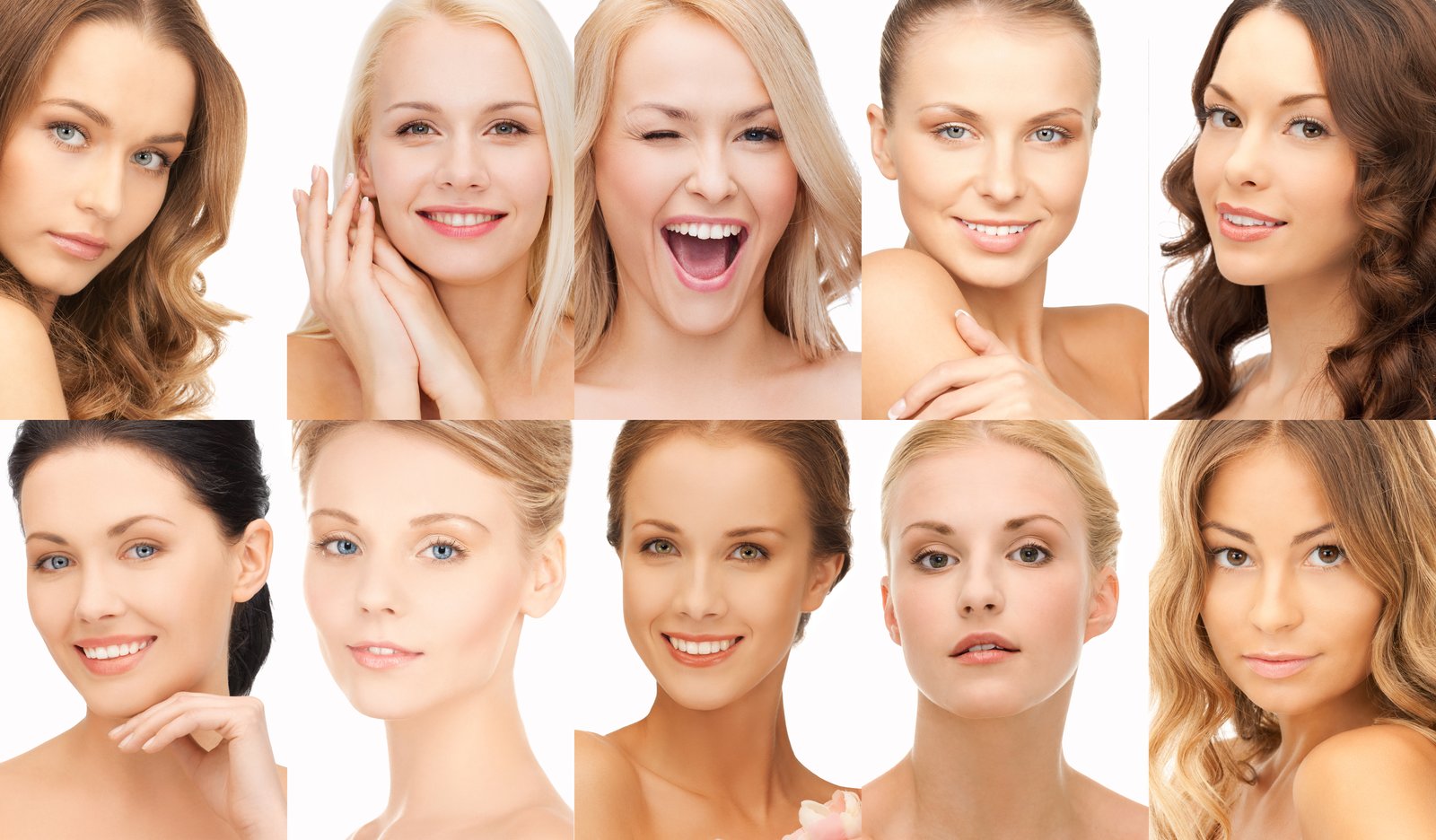
I had a client last spring send back a set of beauty shots with a note that said, simply, “her face is green.” She wasn’t wrong. The model had been shot under mixed lighting, a softbox on one side and a window on the other, and what looked passable on my uncalibrated laptop at midnight looked unambiguously swampy when I opened it fresh the next morning. I fixed it in about twelve minutes. A few years ago, it would have taken me an hour and still not looked right.
Color correction is one of those skills that feels mysterious until it clicks, and then you wonder how you ever struggled with it. The good news is that portraits follow predictable rules, and once you understand what’s actually happening to the light information in your file, the fixes become logical rather than random.
What “Color Cast” Actually Means in a Raw File
When a camera captures an image, it records light values across three channels: red, green, and blue. A color cast happens when one of those channels is disproportionately bright or dark relative to the others. Under tungsten light, the red and green channels run hot. Under fluorescent or mixed office lighting, green tends to spike. Your eye corrects for this in real life, but the sensor doesn’t, and neither does your monitor unless it’s been properly calibrated.
This is why color correction has to happen before anything else in your retouching workflow. If you start dodging and burning, smoothing skin, or adjusting contrast on top of an uncorrected color cast, you’re building on a broken foundation. You’ll compound the problem with every additional layer.
The Correction Order That Saves You from Reworking Everything
I work in a sequence I call the “Casablanca” order, named after the Photoshop action set I built around it. Every portrait goes through these stages, in this order, before I touch anything else.
1. White balance in Camera Raw or Lightroom first. Even if the image is a JPEG, open it in Camera Raw via Filter > Camera Raw Filter. Drag the Temperature slider until any obvious warm or cool bias disappears from a neutral area, like the whites of the eyes or a white garment. Don’t trust the “Auto” button here. It averages the whole frame and will often pull toward the background color.
2. Set a neutrals anchor with the Curves adjustment. Open a Curves layer and use the gray eyedropper (the middle one) to click on something in the frame that should be a true neutral gray. If there’s no neutral gray in the shot, a catchlight in the eye works surprisingly well. This forces all three channels to equalize at that point, which pulls the cast without nuking your overall exposure.
3. Check the skin tone numbers, not just your eyes. Open the Info panel (Window > Info) and hover your cursor over the midtone areas of the skin. For fair to medium skin, you want the red value to be highest, followed by green, with blue lowest. A common ratio that reads naturally is roughly R: 220, G: 185, B: 165 for a lighter skin tone in an 8-bit file. For deeper skin tones, those numbers will all be lower, but the relationship holds: red leads, green follows, blue trails. If green is creeping above red, you have a cast. If blue is within ten points of green, something is off.
4. Selective color for the final nudge. Once your global correction is done, add a Selective Color adjustment layer and target the Reds and Yellows channels, which carry most of the skin tone information. Small moves here, plus or minus 3 to 5 points on Cyan, Magenta, and Yellow, can fix the subtle pinkness or yellowness that global corrections miss. I almost never go beyond plus or minus 8 on any single slider in this layer.
The Mistake I Made That I Still Think About
Early in my retouching work, I got feedback from a beauty client that a set of images looked “too processed,” and I couldn’t understand why. The retouching itself was clean. The skin texture was intact. But when I went back and looked at the files, I realized I had corrected each image independently by eye, without anchoring to any numerical reference. The model’s skin shifted slightly from frame to frame, sometimes warmer, sometimes pinker, reading as a completely different person across a twelve-shot sequence.
After that, I started building reference swatches. I sample the corrected skin tone from the hero image in a set, drop it as a solid color swatch onto every other file, and use it as a visual anchor while I work. It takes about thirty extra seconds per image and eliminates drift across a series entirely. Consistency across a set is often what separates a polished job from one that just looks “off” in ways the client can’t quite articulate.
How Your Monitor Is Lying to You Right Now
None of this works if your monitor isn’t calibrated. I use an X-Rite i1Display Pro, which runs about $180 and takes seven minutes to run. I calibrate to a D65 white point (6500K), gamma 2.2, and a luminance of 120 candelas per square meter, which is appropriate for mixed ambient light environments like my home studio. If you’re working on a factory-default laptop screen in a bright room, your color corrections are essentially guesses. The numbers in your Info panel will still be accurate, which is why leaning on them rather than your perception is the smarter habit until your viewing environment is dialed in.
When to Stop Correcting
Over-corrected skin reads as flat and artificial, and the trap is that it can look fine on your screen while appearing wrong everywhere else. Once your channels are balanced and your skin tone numbers are in range, stop. If you find yourself pushing Selective Color adjustments past 10 points to get the color where you want it, go back and revisit your white balance. The answer is almost always upstream.
Color correction isn’t about making skin look a specific way. It’s about removing the technical noise so the actual person in the frame can come through clearly.
Comments
Leave a Comment