Master Color Correction for Flawless Portrait Retouching

Master Color Correction for Flawless Portrait Retouching

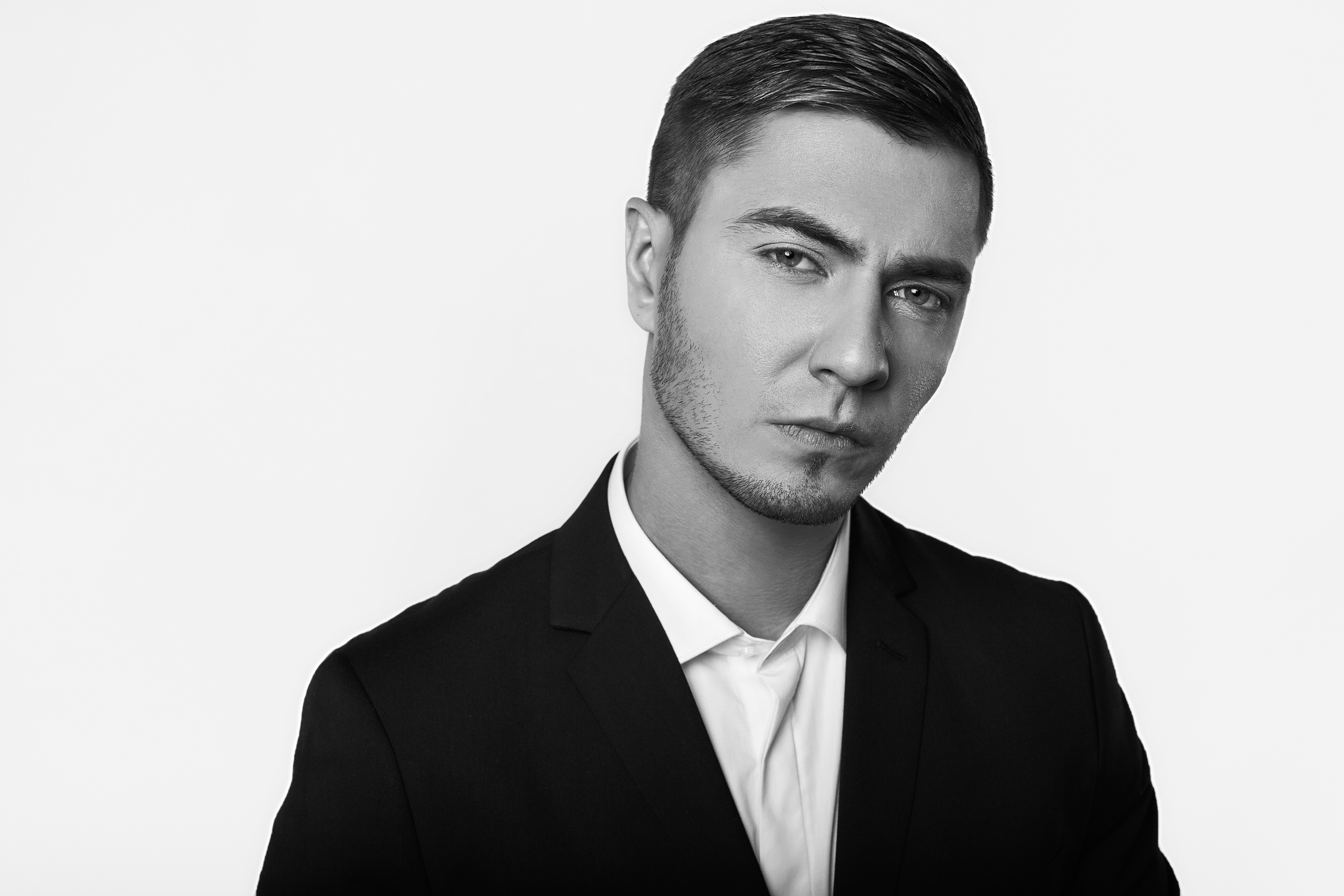
Master Color Correction for Flawless Portrait Retouching Color correction is where the magic happens in portrait retouching. I’ve found that even the most beautifully lit portrait can feel off if the color isn’t right. Whether you’re dealing with unflattering lighting conditions, mixed color temperatures, or just want to enhance skin tones, understanding color correction will transform your work. Let me walk you through the techniques I rely on every day.

Makeup Retouching Essentials: How to Enhance Beauty Without Losing Authenticity

Makeup Retouching Essentials: How to Enhance Beauty Without Losing Authenticity

Makeup Retouching Essentials: How to Enhance Beauty Without Losing Authenticity When I first started retouching portraits, I made the same mistake many editors do: I over-edited the makeup. The skin looked plastic, the lips looked painted-on, and the final result screamed “retouched.” Over the years, I’ve learned that the best makeup retouching is the kind people don’t immediately notice. Today, I’m sharing the techniques that have transformed how I approach this delicate work.

How to Use Lightroom Mobile's New AI Blemishes Tool for Professional Portrait Retouching

How to Use Lightroom Mobile's New AI Blemishes Tool for Professional Portrait Retouching

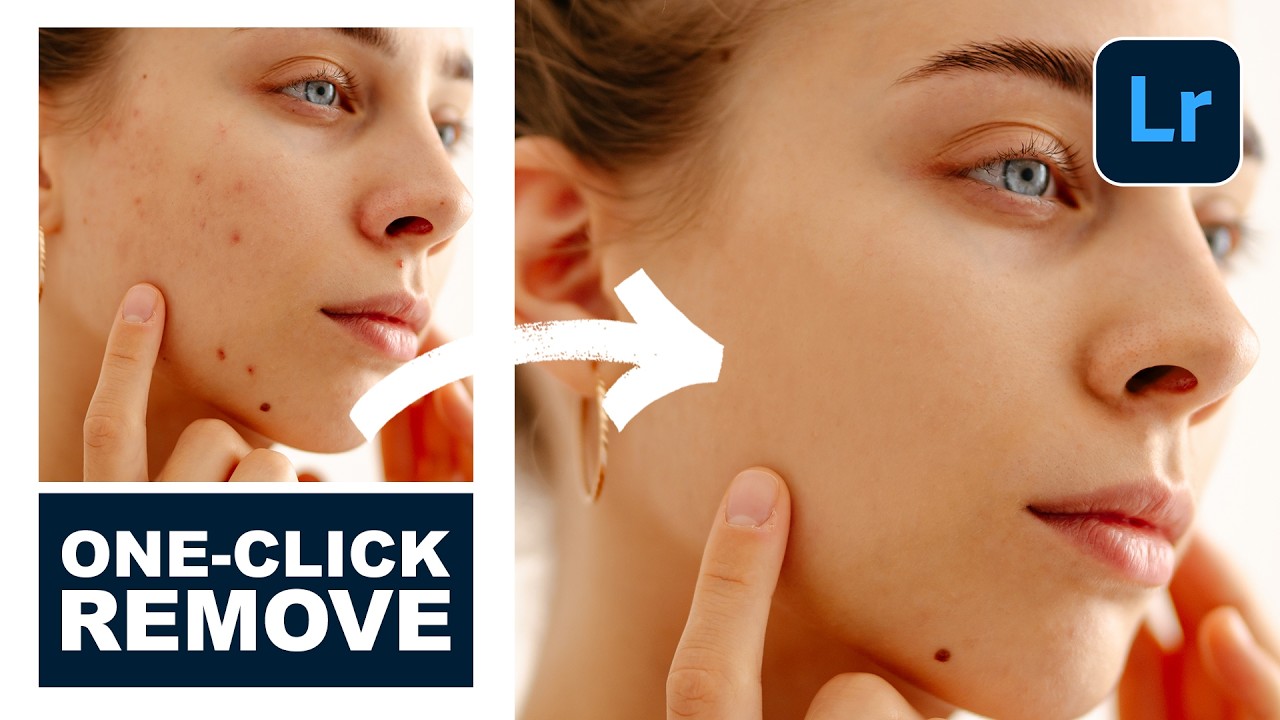
I’ve been following the rapid evolution of AI-powered editing tools, and I have to say—Lightroom Mobile’s new Blemishes tool is genuinely impressive. In this excellent tutorial, Aaron Nace (PHLEARN) shows us how to leverage this intelligent feature to achieve professional-quality skin retouching right from our phones. Let me break down exactly how this works and share some insights I’ve picked up from testing it myself. What Makes This Tool Different? Before we dive into the steps, I want to clarify why I’m excited about this feature.

How to Smooth Skin in Photoshop Without Losing Texture

How to Smooth Skin in Photoshop Without Losing Texture

Every portrait retoucher faces the same challenge: how do you smooth skin without making it look like plastic? The answer is frequency separation — a technique that separates your image into texture and color layers, letting you work on each independently. The Basic Setup Duplicate your background layer twice Name the top layer “Texture” and the bottom “Color” On the Color layer, apply Gaussian Blur (radius 6-10 pixels depending on resolution) On the Texture layer, go to Image > Apply Image, select the Color layer, set blending to Subtract, Scale 2, Offset 128 Set the Texture layer blend mode to Linear Light Working the Color Layer Select the Color layer and use a soft brush with the Mixer Brush tool (or just a regular brush at low opacity).

How to Reshape Features Without Going Overboard

How to Reshape Features Without Going Overboard

The Liquify tool is the most powerful and most abused tool in portrait retouching. In the right hands, it makes subtle corrections that nobody notices. In the wrong hands, it creates uncanny-valley distortions that scream “this was Photoshopped.” The difference comes down to restraint and technique. When Liquify Is Appropriate Liquify corrections should address things that a slightly different camera angle, focal length, or expression would have changed. Wide-angle lens distortion makes noses look bigger and ears look smaller.

How to Remove Dark Circles Under Eyes in Photoshop

How to Remove Dark Circles Under Eyes in Photoshop

Dark circles under the eyes are one of the most common retouching requests. Almost everyone has them to some degree, and studio lighting tends to make them worse. The trick is reducing them without eliminating them entirely — because removing all shadow from under the eyes creates an uncanny, flat look. Here’s the approach I use on every portrait session. Why You Shouldn’t Just Clone Them Away The first instinct most beginners have is to grab the Clone Stamp and paint cheek skin over the dark area.

How to Remove Blemishes in Photoshop: A Complete Guide to Flawless Skin Retouching

How to Remove Blemishes in Photoshop: A Complete Guide to Flawless Skin Retouching

How to Remove Blemishes in Photoshop: A Complete Guide to Flawless Skin Retouching When I started my journey in portrait retouching, I quickly realized that learning how to remove blemishes in Photoshop is one of the most valuable skills you can master. Whether you’re editing headshots, beauty photography, or personal portraits, blemish removal is fundamental to creating polished, professional-looking images. Here’s the thing: removing blemishes isn’t about making skin look artificial or plastic.

How to Match Skin Tones Across Multiple Images

How to Match Skin Tones Across Multiple Images

You’ve shot a portrait session across two locations with different lighting. The indoor shots are warm and orange. The outdoor shots are cool and blue. Your client expects them to look cohesive in the same gallery. Sound familiar? Matching skin tones across images is one of the more tedious but essential retouching skills. The Sampling Method This is the most reliable approach: Open both images side by side in Photoshop

How to Add Catchlights and Enhance Eye Detail

How to Add Catchlights and Enhance Eye Detail

The eyes are the first thing people look at in a portrait. If the eyes are dull, the entire image falls flat no matter how good the rest of your retouching is. Enhancing eye detail is one of the highest-impact retouching techniques you can learn. But there’s a fine line between “vibrant, alive eyes” and “alien contact lens advertisement.” Let’s stay on the right side of it. Understanding Catchlights Catchlights are the reflections of light sources visible in the eyes.

How App Store Policy Changes Could Impact Your Portrait Retouching Software

How App Store Policy Changes Could Impact Your Portrait Retouching Software

How App Store Policy Changes Could Impact Your Portrait Retouching Software I’ve been watching the ongoing legal developments between major tech companies and app developers with keen interest, especially as they relate to our community of portrait and beauty editors. The latest escalation in this ongoing dispute reminds us that the tools we rely on daily—our favorite retouching software, AI beauty filters, and editing apps—exist within a complex legal and business landscape.

How AI Chat History Transfer Could Transform Your Retouching Workflow

How AI Chat History Transfer Could Transform Your Retouching Workflow

How AI Chat History Transfer Could Transform Your Retouching Workflow I’ve been watching the AI landscape evolve, and I’m genuinely excited about what Google is doing with Gemini’s newest update. They’re rolling out the ability to bring your conversation history and personal data from other AI platforms directly into Gemini—and honestly, this has some really interesting implications for those of us in the portrait retouching and beauty editing space. Why This Matters for Beauty Editors Here’s the thing: as retouchers and beauty editors, we’re constantly building relationships with our AI tools.

High-End Retouching Techniques Used by Magazine Editors

High-End Retouching Techniques Used by Magazine Editors

What separates a magazine cover retouch from typical portrait editing? It’s not more Photoshop filters — it’s more time, more precision, and a completely different standard of what “done” looks like. I’ve worked with editorial teams at several fashion magazines, and here’s what the workflow actually looks like behind the scenes. The Retouching Brief Before any pixels get pushed, there’s a creative brief. The art director specifies: Overall mood and color direction How much retouching is acceptable (some magazines are going for a more natural look these days) Specific things to address (and specific things to leave alone) Reference images for the desired look This is important because editorial retouching isn’t about making someone look “perfect” — it’s about serving the creative vision of the editorial team.